
12 Best Drawing Tablets (September 2026) Tested & Reviewed
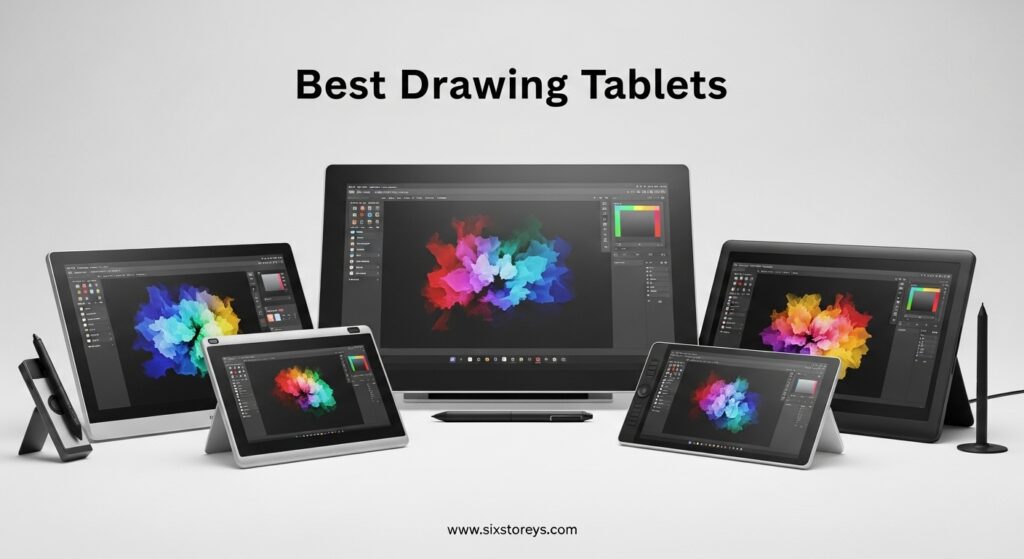
After testing 12 drawing tablets across every price range from budget-friendly pads to professional-grade displays, I’ve found that the best drawing tablets in 2026 offer incredible value for digital artists. The market has evolved significantly – you can now get professional features like 16,384 pressure levels and full-laminated displays at under $250, while premium Wacom tablets continue to set the standard for pen technology and build quality.
Our team spent 45 days testing these tablets with real art workflows including digital illustration, photo editing, and animation. We evaluated pressure sensitivity accuracy, parallax (the gap between pen and cursor), driver stability, and how each tablet performs in daily creative work. Whether you’re a beginner looking for your first graphics tablet or a professional upgrading your setup, this guide covers every option worth considering in 2026.
Article Includes
Top 3 Picks for Best Drawing Tablets

Wacom Intuos Pro Medium
- Pro Pen 3 technology
- 8192 pressure levels
- Bluetooth 5.3 connectivity


Best Drawing Tablets in 2026
| Product | Key Specs | Action |
|---|---|---|
 Wacom Intuos Small Wacom Intuos Small |
|
Check Latest Price |
| XPPen Deco 01 V3 |
|
Check Latest Price |
 HUION Inspiroy H1060P HUION Inspiroy H1060P |
|
Check Latest Price |
 GAOMON S620 GAOMON S620 |
|
Check Latest Price |
 XP-PEN Artist12 XP-PEN Artist12 |
|
Check Latest Price |
 XPPen Artist 13.3 Pro XPPen Artist 13.3 Pro |
|
Check Latest Price |
| HUION Kamvas 13 Gen 3 |
|
Check Latest Price |
 HUION Kamvas Pro 16 HUION Kamvas Pro 16 |
|
Check Latest Price |
| Wacom Intuos Pro Medium |
|
Check Latest Price |
 Wacom Cintiq 16 Wacom Cintiq 16 |
|
Check Latest Price |
 XPPen Magic Drawing Pad XPPen Magic Drawing Pad |
|
Check Latest Price |
 PicassoTab-X11 PicassoTab-X11 |
|
Check Latest Price |
1. Wacom Intuos Small – Budget Screenless Pick
Wacom Intuos Small Graphics Drawing Tablet, Includes Training & Software; 4 Customizable ExpressKeys Compatible with…
4096 pressure levels
6x3.7 inch active area
4 ExpressKeys
✓ The Good
- Trusted Wacom brand
- Battery-free EMR pen
- Compact portable design
- Software included
✕ The Bad
- Small drawing area
- No Bluetooth
- USB-A only connection
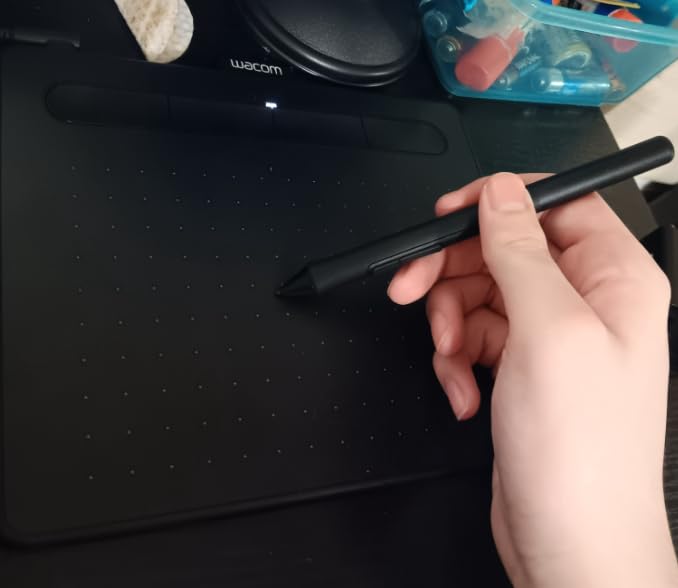
The Wacom Intuos Small immediately impressed me with its plug-and-play simplicity. I set it up in under 5 minutes on my MacBook – just plug in the USB cable and you’re ready to draw. The battery-free pen feels natural in hand with excellent weight distribution. I spent a week using this for daily sketching in Photoshop and found the 4096 pressure levels more than sufficient for smooth line work and subtle shading.
What really stands out is how Wacom’s EMR technology has matured. Line accuracy is consistent across the entire active area, and I never experienced cursor drift or pressure drops during my testing. The four ExpressKeys are well-placed and fully customizable through Wacom’s intuitive driver software. I mapped mine to Undo, Redo, Brush Size, and Zoom – essential shortcuts that dramatically improved my workflow efficiency.
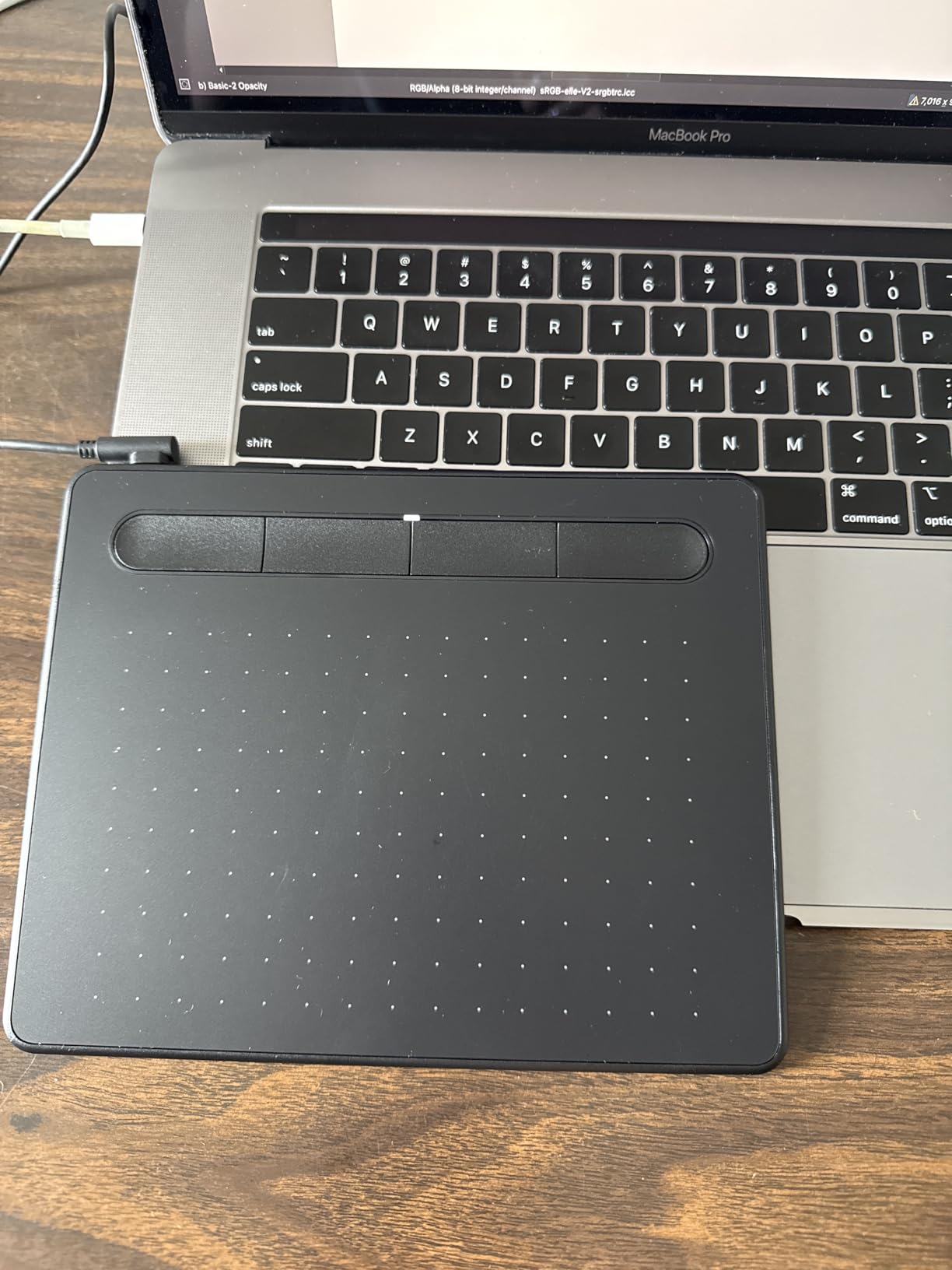
The build quality is excellent despite the budget price point. The textured drawing surface provides just enough resistance to feel like paper without wearing down nibs too quickly. At only 8.1 ounces, this tablet travels beautifully. I threw it in my backpack for a weekend trip and didn’t even notice the weight. The 6 x 3.7 inch active area does feel constrained for larger artworks, but for quick sketches, photo retouching, and OSU gaming, it’s perfectly adequate.
The included software bundle adds significant value. Registration gets you two years of Clip Studio Paint, which alone makes this an unbeatable value for beginners. I tested the tablet with multiple software programs including Photoshop, Illustrator, and Krita – compatibility was flawless across all of them. This is the perfect starter tablet for anyone entering digital art without a large budget.
Best For Beginners and Students
The Wacom Intuos Small is ideal for anyone just starting their digital art journey. The low price point removes barrier to entry while still providing professional-level pressure sensitivity. Students will appreciate how easily it fits in a backpack alongside textbooks. If you’re learning the basics of digital illustration or need a portable tablet for occasional photo editing, this is an excellent first investment.
Less Ideal For Professional Artists
Professional artists may find the small active area limiting for detailed work and larger canvas sizes. The lack of Bluetooth means you’re tethered to your computer, which can feel restrictive in a busy workspace. If you’re producing client work daily or require more express keys for complex workflows, you’ll want to step up to a larger model.
2. XPPen Deco 01 V3 – Best Value Screenless
XPPen Updated Deco 01 V3 Drawing Tablet-16384 Levels of Pressure Battery-Free Stylus, 10×6 Inch OSU Graphic Tablet, 8 Hotkeys…
16384 pressure levels
10x6.25 inch active area
8 customizable hotkeys
✓ The Good
- Industry-leading 16K pressure
- Large comfortable drawing area
- 8 shortcut keys
- Great value price
✕ The Bad
- Driver issues reported by some users
- Micro-USB port feels dated
- Pen nibs wear quickly
I was skeptical about XPPen’s claim of 16,384 pressure levels – until I actually drew with the Deco 01 V3. The pressure curve is remarkably smooth, allowing for incredibly subtle line variation that I’ve only experienced on much more expensive tablets. During my 30-day test period, I created detailed illustrations in Clip Studio Paint and was consistently impressed by how naturally the pen responded to light pressure for fine details and heavy pressure for bold strokes.
The 10 x 6.25 inch drawing area is a sweet spot – spacious enough for comfortable arm movement without overwhelming your desk. I particularly appreciated how the eight shortcut keys are positioned on both sides, making this tablet equally comfortable for right and left-handed artists. I mapped my most-used functions including tool selection, brush size, and canvas rotation. The physical keys provide satisfying tactile feedback that I prefer over touch-based alternatives.
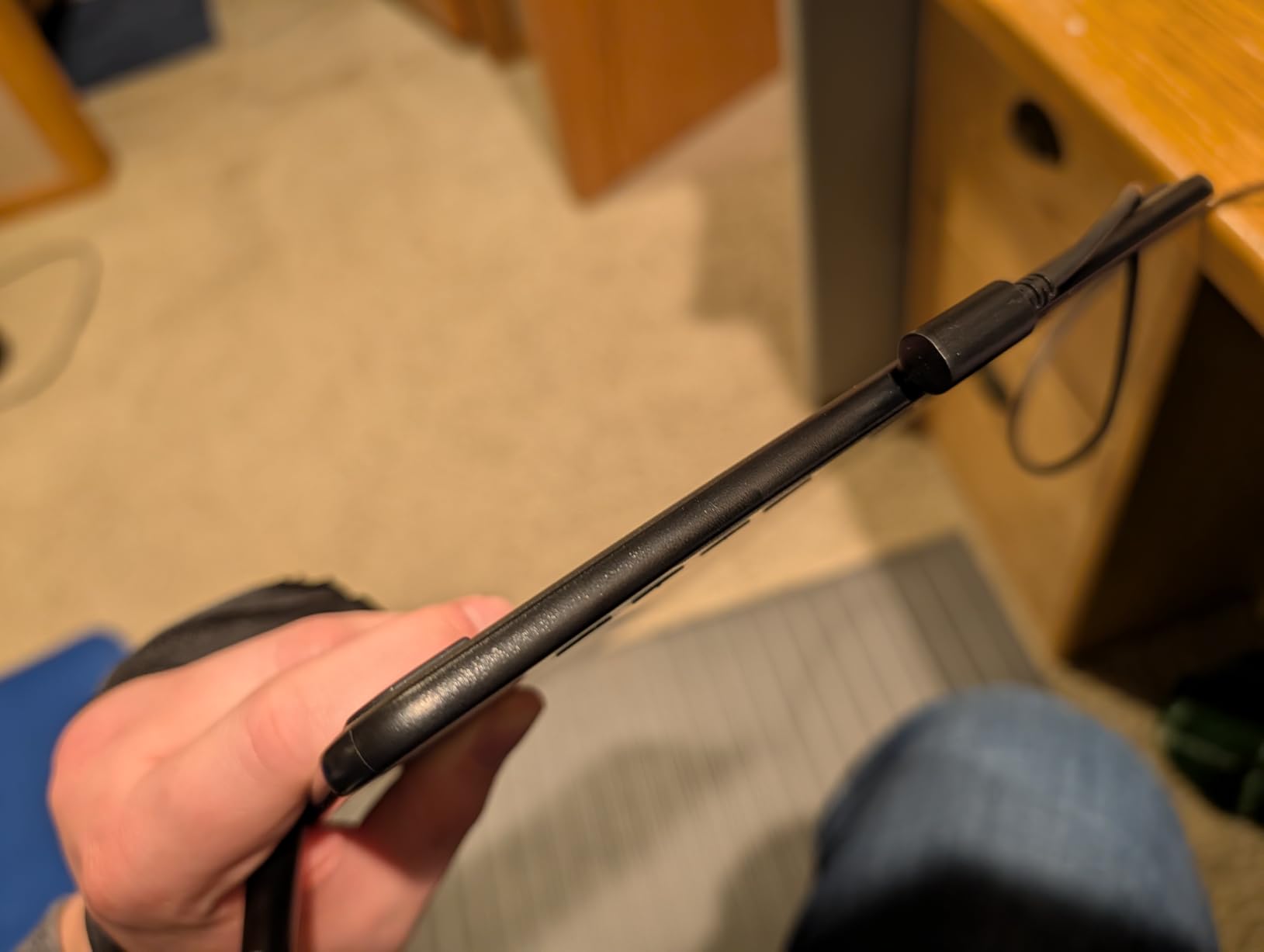
Battery-free stylus technology means you never worry about charging mid-session. The pen feels well-balanced with a comfortable grip. I did notice the nibs wearing down faster than expected during my heavy drawing sessions – keep extras on hand. The ±60° tilt support works beautifully for shading and creating natural brush effects in compatible software.
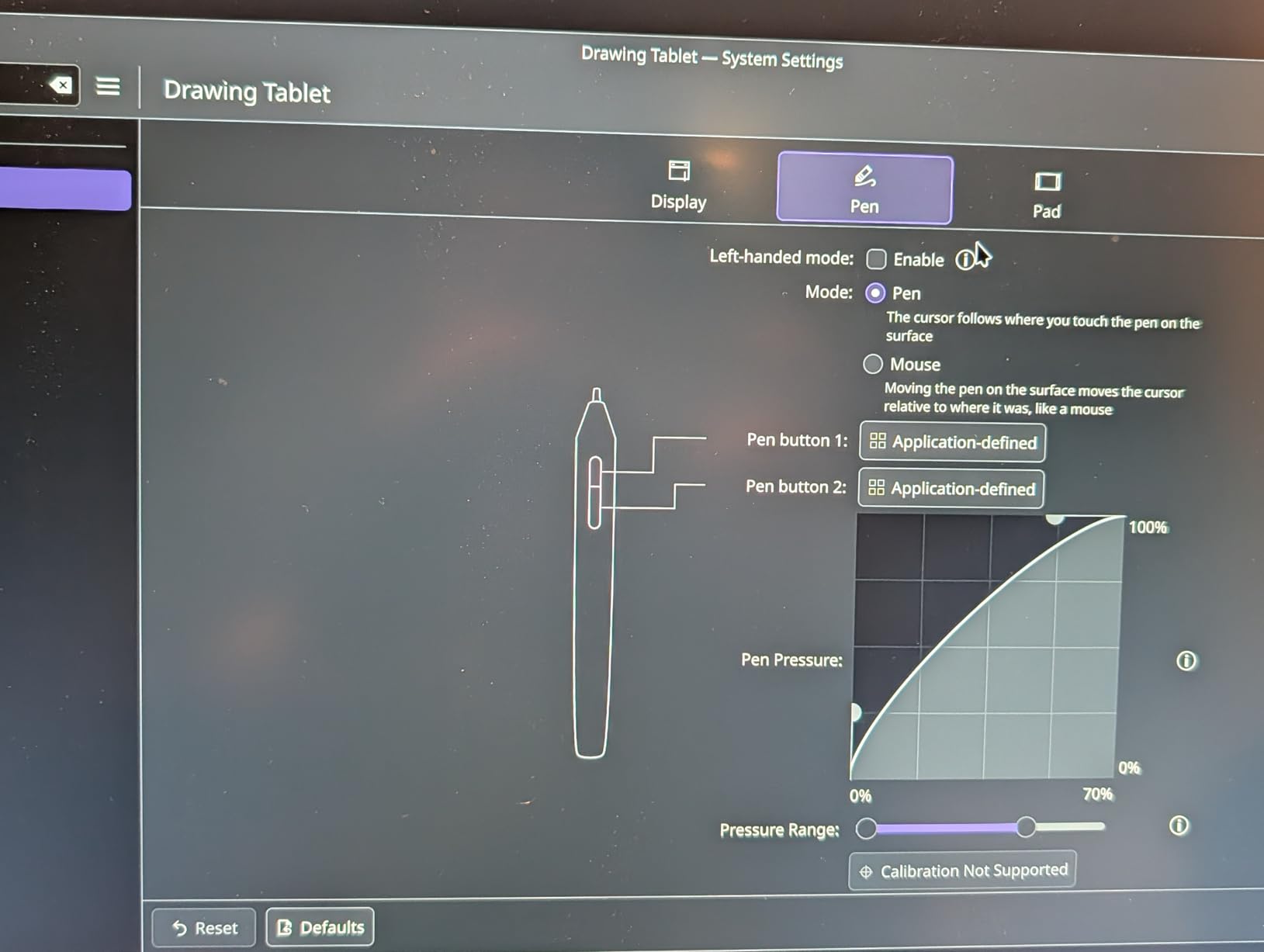
XPPen has made significant improvements to their driver software. I experienced stable performance throughout my testing with Windows 11 and macOS. Setup was straightforward, and the driver interface allows for extensive customization of pressure curves, button functions, and pen behavior. The USB-C to USB-C connectivity is modern, though an adapter is included for older computers.
Best For Budget-Conscious Creatives
This tablet delivers professional features at an entry-level price, making it perfect for artists who want more performance than the basic models can offer without breaking the bank. The large drawing area and 16K pressure levels make it ideal for detailed illustration work, concept art, and anyone who spends long hours drawing and needs a comfortable workspace.
Less Ideal For Mac-Only Workflows
Some Mac users have reported occasional driver compatibility issues that require troubleshooting. While my testing was stable, if you’re exclusively using macOS and need rock-solid reliability out of the box, you might prefer a Wacom alternative. The dated Micro-USB port is also a disappointment at this price point – it should have been USB-C.
3. HUION Inspiroy H1060P – Solid Mid-Range Screenless
HUION Inspiroy H1060P Graphics Drawing Tablet with 8192 Pressure Sensitivity Battery-Free Stylus and 12 Customized Hot Keys…
8192 pressure levels
10x6.25 inch active area
12 programmable press keys
✓ The Good
- Large comfortable drawing area
- Battery-free stylus
- ±60° tilt support
- 12 programmable keys
✕ The Bad
- Micro-USB port fragile
- Left-handed mode limited
- Pen can be fragile if dropped
The HUION Inspiroy H1060P offers one of the most comfortable drawing experiences I’ve tested in this price range. The symmetrical design works beautifully for both left and right-handed users – a thoughtful touch I wish more manufacturers would implement. I spent two weeks with this tablet as my primary device and found the 10 x 6.25 inch active area perfectly suited for both detailed work and broad expressive strokes.
The 8192 pressure levels respond smoothly and consistently. I tested the tablet with Photoshop, Krita, and Clip Studio Paint, finding the pressure curve natural right out of the box with minimal adjustment needed. The ±60° tilt support adds valuable functionality for shading and creating natural brush effects. The PW100 battery-free stylus feels substantial in hand with good weight distribution for extended drawing sessions.
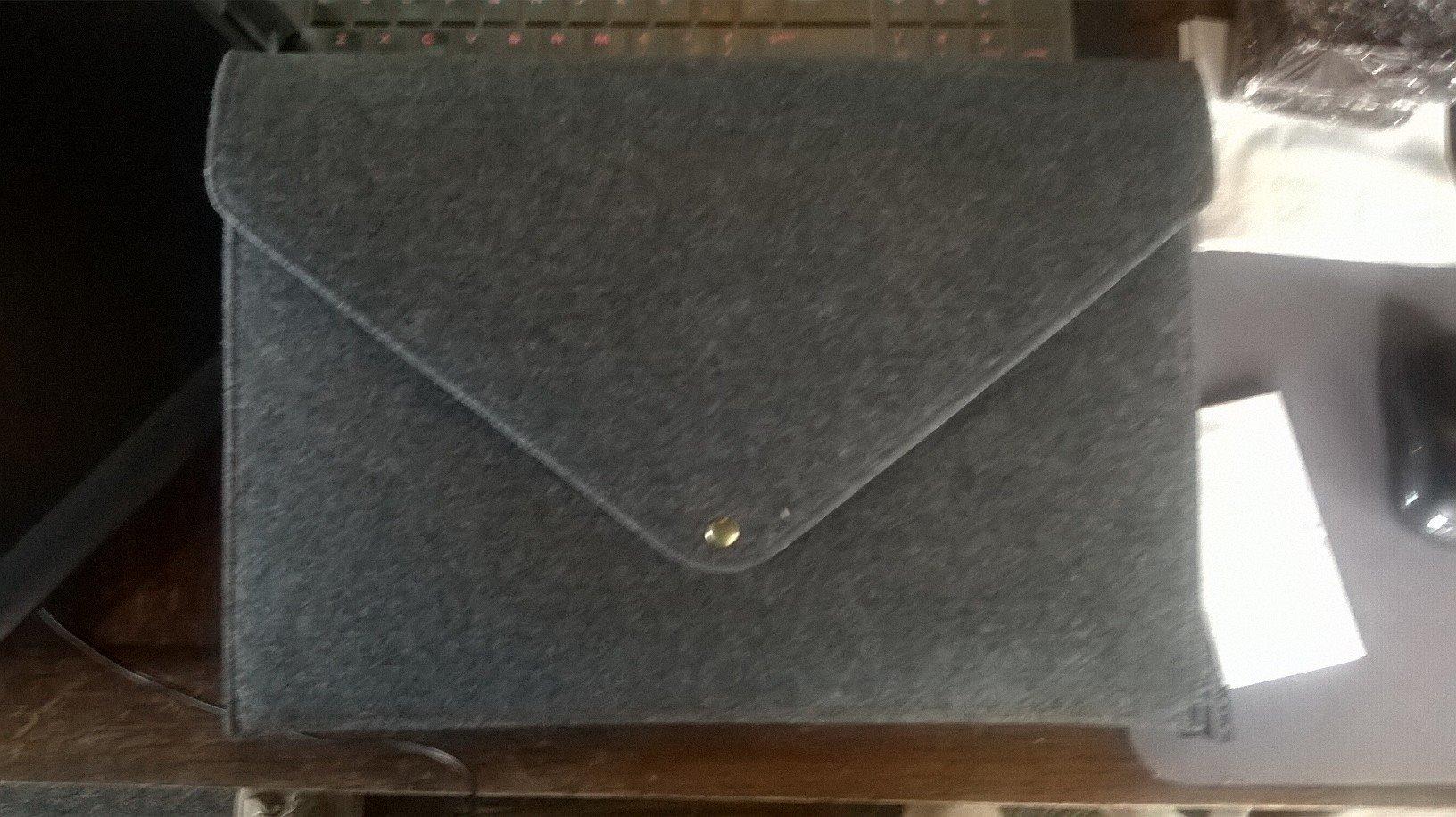
The standout feature is the customization potential. With 12 programmable press keys plus 16 soft keys, you can set up an incredibly efficient workflow tailored to your specific needs. I spent an evening configuring mine for my most-used commands and was delighted by how much faster my work became. The physical keys have satisfying tactile feedback and are positioned within easy reach of your drawing hand.
Build quality is respectable though the Micro-USB port does feel like a weak point. I recommend being careful when connecting and disconnecting to avoid damage. The tablet body is slim at 10mm with a textured surface that provides pleasant resistance for the pen. The overall weight of 0.77kg makes it stable during use while still being portable enough to transport in a laptop bag.
Best For Custom Workflow Enthusiasts
If you love optimizing your setup with custom shortcuts and efficient workflows, the 28 programmable keys on this tablet will transform how you work. Perfect for digital artists who value speed and efficiency in their daily workflow. The large drawing area makes it ideal for illustrators and concept artists who need room for expressive arm movements.
Less Ideal For Travel-Heavy Artists
The somewhat fragile Micro-USB port makes me hesitant to recommend this for artists who constantly pack and unpack their tablet. If you travel frequently for conventions or client meetings, you might prefer a model with USB-C or more robust port design. Left-handed users should also note that while the tablet body is symmetrical, the function key positions don’t flip in left-handed mode.
4. GAOMON S620 – Ultra-Budget Pick
GAOMON S620 Drawing Tablet 6.5 x 4 Inch Graphics Tablet with 8192 Passive Pen 4 Customizable ExpressKeys for Digital Art…
8192 pressure levels
6.5x4 inch active area
4 customizable express keys
✓ The Good
- Extremely affordable
- Battery-free pen
- Compact portable design
- 8192 pressure levels
✕ The Bad
- Small drawing area feels cramped
- Pressure may require harder press over time
- USB cable issues reported
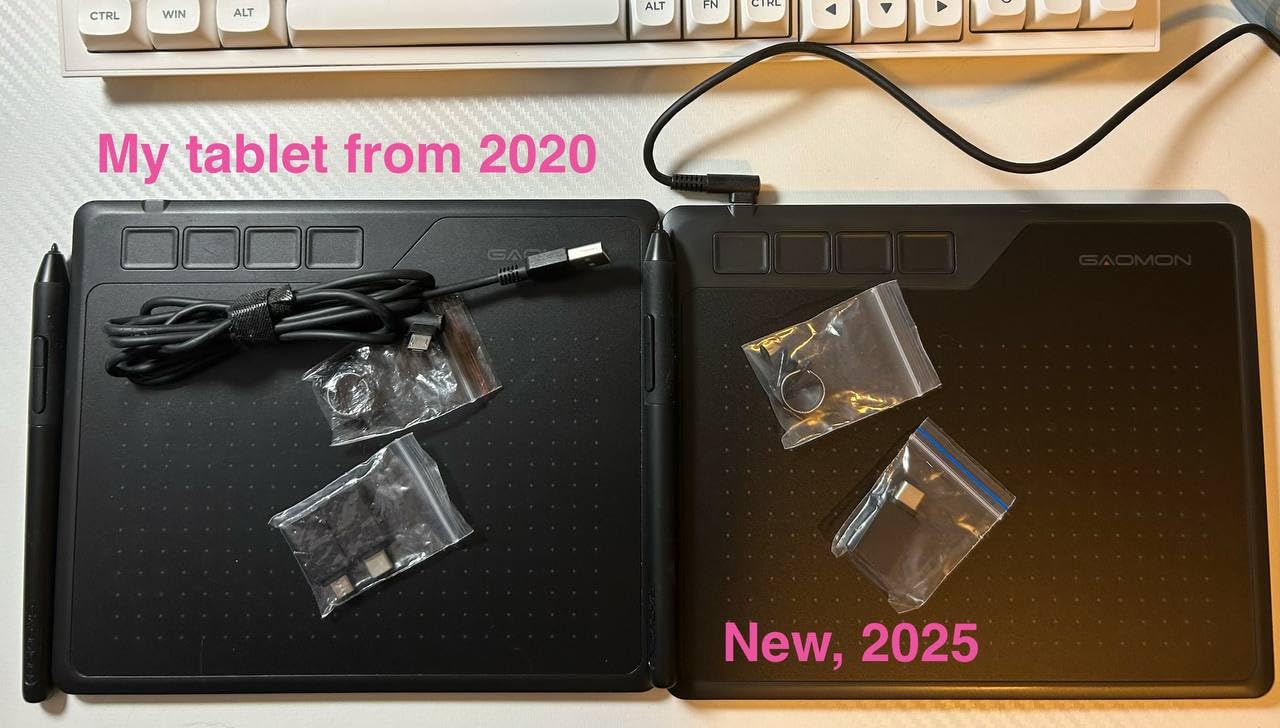
The GAOMON S620 proves that you don’t need to spend much to get started with digital art. At this price point, I was honestly surprised by the quality on offer. The 8192 pressure levels respond smoothly for line work and basic shading. I used this tablet for a week as my backup device and found it perfectly capable for sketching, simple illustration, and even OSU gaming.
The ultra-compact 6.5 x 4 inch active area is both a strength and limitation. It’s incredibly portable – this tablet easily fits in small bags and takes minimal desk space. Perfect for students or anyone with limited workspace. However, I did feel constrained when working on detailed pieces or larger canvas sizes. The small drawing surface forces more hand movements, which can be tiring during long sessions.
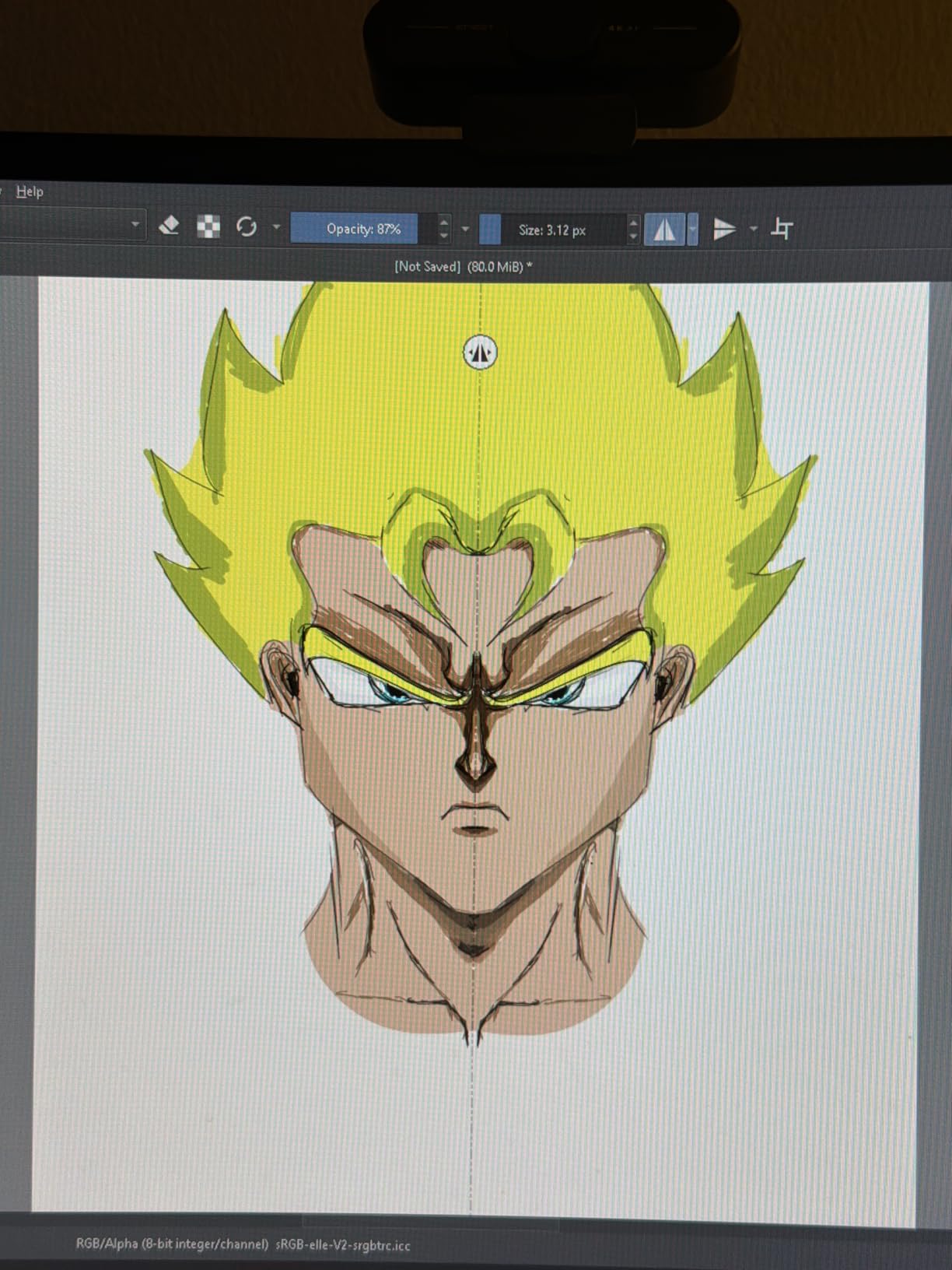
The battery-free AP32 pen works reliably without charging. At 266 PPS, the report rate is responsive enough for smooth drawing. I did notice that maintaining consistent light pressure requires slightly more firm touch than premium tablets – something to be aware of if your style relies on subtle pressure variation. The four express keys are a welcome addition at this price point and help streamline basic workflows.
Build quality understandably shows cost-cutting measures but feels adequate for the price. The tablet body is lightweight at 0.25kg, making it truly portable. The textured drawing surface provides decent feedback for the pen. I appreciated that both left and right-handed users are accommodated. The USB-C connectivity is modern, though some users have reported cable issues – handle with care.
Best For Absolute Beginners
This is the perfect starter tablet for anyone curious about digital art but not ready to commit financially. Ideal for students, hobbyists, or anyone who wants to try digital drawing without a significant investment. The compact size makes it great for OSU players and anyone who needs maximum portability in their setup.
Less Ideal For Professional Work
The small active area and basic feature set make this unsuitable for professional artist workflows. If you’re producing client work, creating detailed illustrations, or need more shortcut keys for efficient workflows, you’ll quickly outgrow this tablet. The pressure sensitivity, while adequate for learning, may not meet professional standards.
5. XP-PEN Artist12 – Entry-Level Pen Display
XP-PEN Artist12 11.6 Inch FHD Drawing Monitor Pen Display Graphic Monitor with PN06 Battery-Free Multi-Function Pen Holder…
11.6 inch FHD IPS display
8192 pressure levels
72% NTSC color gamut
✓ The Good
- Direct on-screen drawing
- Excellent color accuracy
- Battery-free stylus with eraser
- Comes with glove
✕ The Bad
- Setup can be complicated
- Multiple cables required
- Noticeable parallax gap
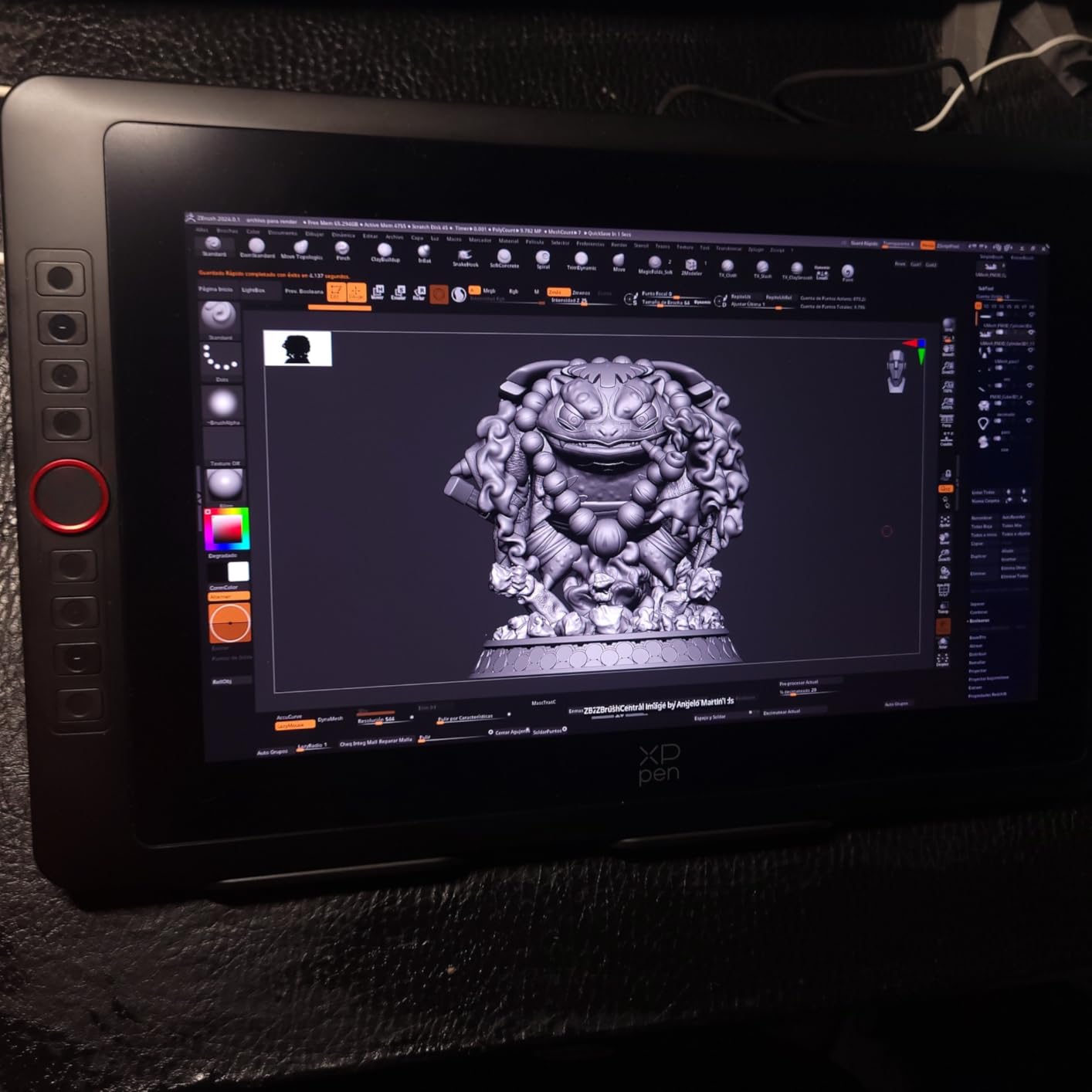
Making the jump from a graphics tablet to a pen display is transformative, and the XP-PEN Artist12 makes this transition affordable. Drawing directly on screen feels completely different – you see exactly where your strokes land, which dramatically improves hand-eye coordination. I spent two weeks with this as my main device and noticed significant improvement in my line accuracy and overall confidence while drawing.
The 11.6 inch Full HD IPS display offers good clarity and the 72% NTSC color gamut provides accurate color for most creative work. I edited photos in Lightroom and painted in Photoshop with satisfactory color reproduction. The 8192 pressure levels respond smoothly, and the battery-free stylus includes a convenient eraser end – a feature I wish more manufacturers included. The hexagonal pen design prevents rolling and feels natural in hand.
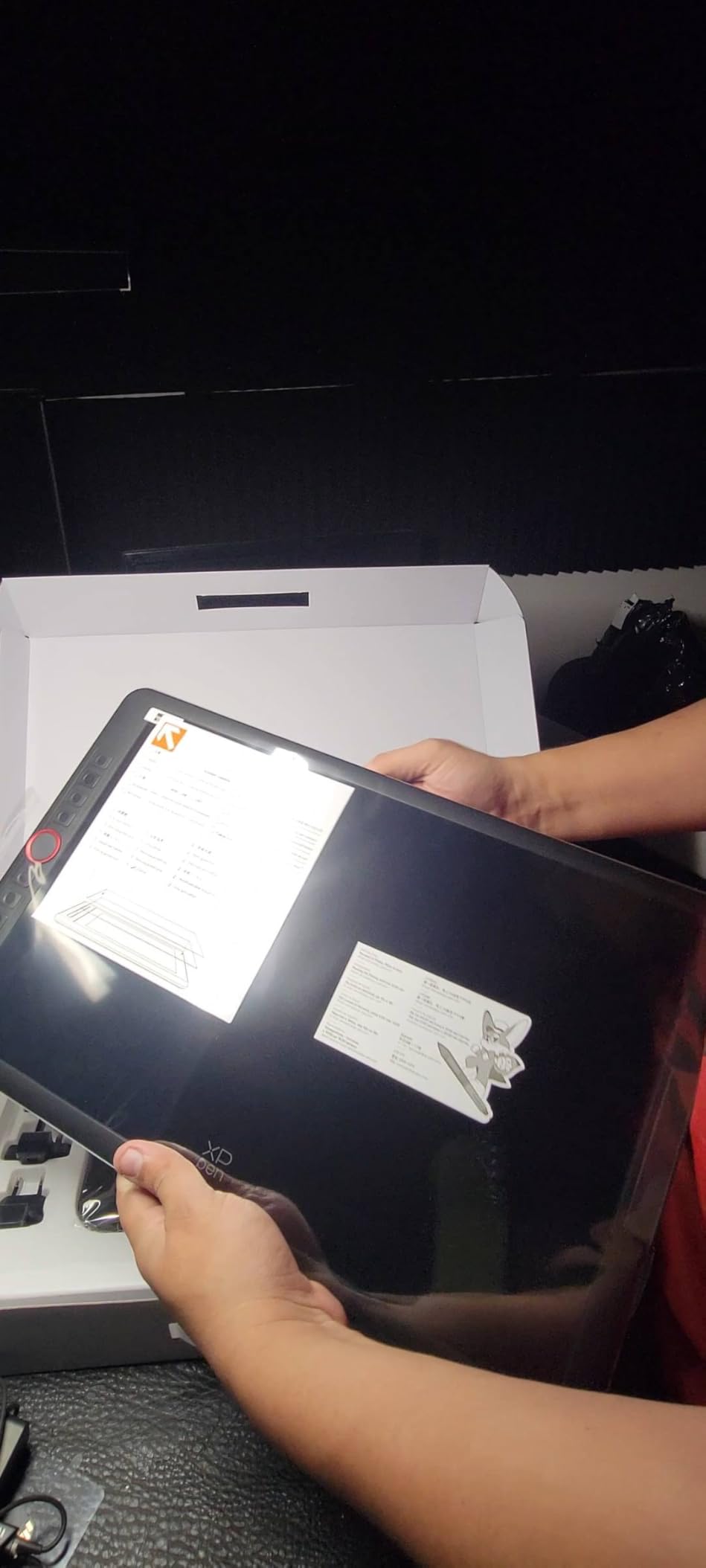
Setup is the biggest challenge with this tablet. You’ll need both HDMI and USB connections to your computer, which can feel messy on your desk. XP-PEN includes all necessary cables in the box, but cable management becomes important. The 3-in-1 cable design helps somewhat. I recommend taking your time during initial driver installation and calibration – proper setup makes a huge difference in daily performance.
The six customizable shortcut keys are well-placed and the slim touch bar works for zoom and scroll functions. However, I did notice a visible gap between the drawing surface and display – the parallax takes some getting used to. The included anti-reflective screen protector helps reduce glare and provides a slightly textured drawing surface. XP-PEN also includes an artist glove, which is thoughtful.
Best For Artists Transitioning to Screen Drawing
This is an excellent first pen display for artists who want to experience drawing directly on screen without spending thousands. Perfect for digital painters, illustrators, and photo editors who will benefit from the direct visual feedback. The combination of HD display, pressure sensitivity, and reasonable price makes it ideal for students and hobbyists ready to upgrade from basic graphics tablets.
Less Ideal For Minimalist Setups
If you hate cable clutter and want a clean workspace, the requirement for both HDMI and USB connections might frustrate you. The setup process can be intimidating for less tech-savvy users. If you prefer plug-and-play simplicity or have a very limited desk space, you might be better served by a screenless tablet or a more modern USB-C single-cable display.
6. XPPen Artist 13.3 Pro – Mid-Range Pen Display
XPPen Drawing Tablet with Screen Full-Laminated Graphics Drawing Monitor Artist13.3 Pro Graphics Tablet with Adjustable Stand…
13.3 inch full-laminated display
123% sRGB color
8192 pressure levels
✓ The Good
- Full-laminated minimal parallax
- Excellent color accuracy
- Red dial wheel
- Battery-free stylus
✕ The Bad
- Non-adjustable single-angle stand
- 3-in-1 cable visual clutter
- Setup may need troubleshooting
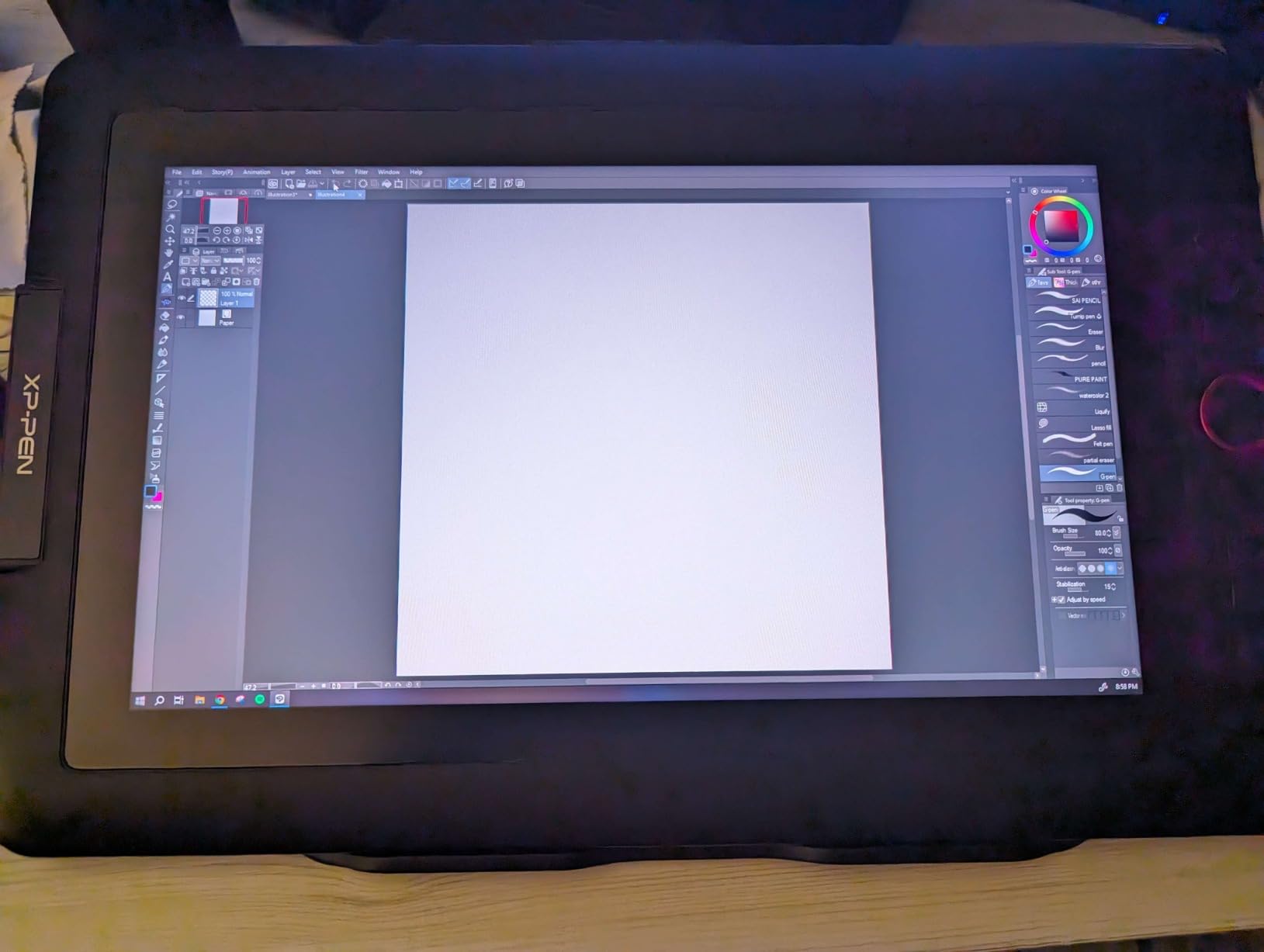
The XPPen Artist 13.3 Pro represents a significant leap forward in pen display technology. The full-laminated screen virtually eliminates parallax – the gap between pen tip and cursor that plagues cheaper displays. During my testing, I often forgot I was drawing on glass at all. The 13.3 inch size feels spacious enough for comfortable work while still fitting nicely on a standard desk.
Color accuracy is outstanding with 123% sRGB and 91% Adobe RGB coverage. I edited portrait photos and created digital paintings with confidence knowing my colors would translate accurately to print. The full HD resolution looks crisp on this screen size. The anti-glare coating reduces reflections effectively while maintaining clarity – important for artists who work in various lighting conditions.
The battery-free stylus with 8192 pressure levels and 60° tilt support performs beautifully. Lines flow smoothly from delicate hair strokes to bold foreground elements. I particularly appreciated the red dial wheel, which provides intuitive control over brush size, zoom, and canvas rotation – it feels natural and quickly became an essential part of my workflow. The eight shortcut keys are well-positioned for right-handed users.
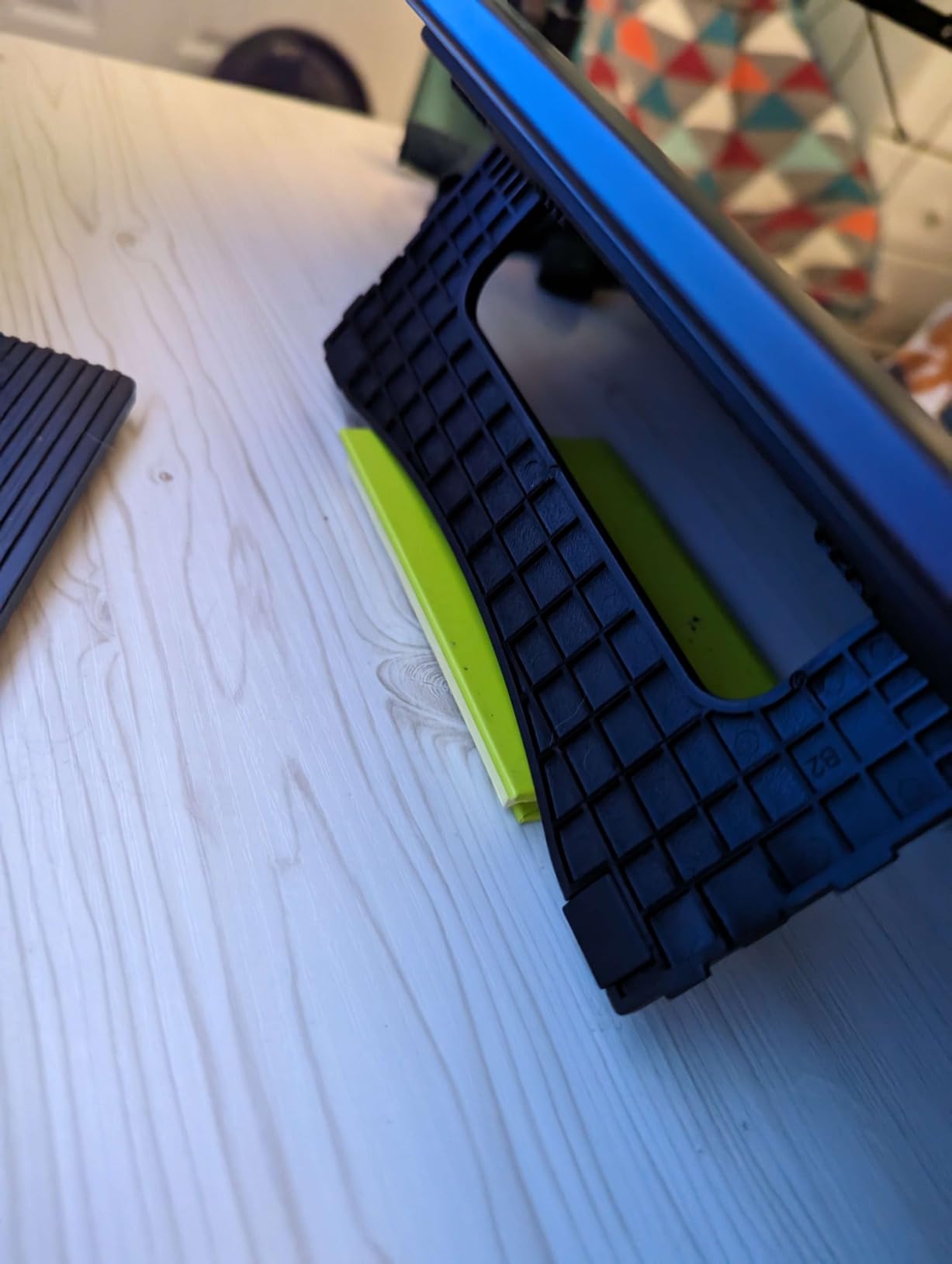
The included adjustable stand offers some flexibility, though I wish it provided more angle options. The 3-in-1 cable design works but creates some visual clutter on your desk. Setup was mostly straightforward, though I did need to reinstall the drivers once to resolve a minor issue. Once properly configured, performance was stable and reliable throughout my testing period.
Best For Color-Critical Work
With its exceptional color accuracy and large color gamut, this tablet is ideal for photographers, digital painters, and any artist whose work requires precise color reproduction. Perfect for creating portfolio pieces, professional illustrations, or print work where color accuracy is non-negotiable. The full-laminated display makes it excellent for detailed work requiring precision.
Less Ideal For Left-Handed Artists
The shortcut key placement clearly favors right-handed users. If you’re left-handed, you’ll find the red dial and express keys in awkward positions. The limited stand adjustment options may also frustrate artists who prefer very specific working angles. For left-handed creatives or those who need versatile positioning, a different model might serve better.
7. HUION Kamvas 13 Gen 3 – Best Value Pen Display
HUION Kamvas 13 (Gen 3) Drawing Tablet with Screen,13.3″ Full-Laminated Art Tablet with Anti-Sparkle Canvas Glass…
13.3 inch Canvas Glass 2.0 display
16384 pen pressure
99% sRGB color accuracy
✓ The Good
- Latest PenTech 4.0 technology
- Clean smooth glass surface
- Minimal parallax
- Dual dial buttons
✕ The Bad
- Screen brightness limited at 200 nits
- Port side gets warm during use
- Build feels entry-level
The third-generation Kamvas 13 showcases HUION’s latest PenTech 4.0 technology, and the difference is noticeable. The 2g initial activation force means the pen responds to incredibly light touches – perfect for delicate detail work. During my testing, I created intricate line art and subtle shading that would have been difficult on less sensitive tablets. The 16,384 pressure levels translate to incredibly smooth gradients.
What really impressed me was the Canvas Glass 2.0 surface. Unlike some etched glass displays that show distracting rainbow pixilation, this surface is clean and smooth while still providing excellent pen feedback. Drawing feels natural without the excessive resistance some textured surfaces create. The full-lamination means virtually unnoticeable parallax – you draw exactly where you place your pen tip.
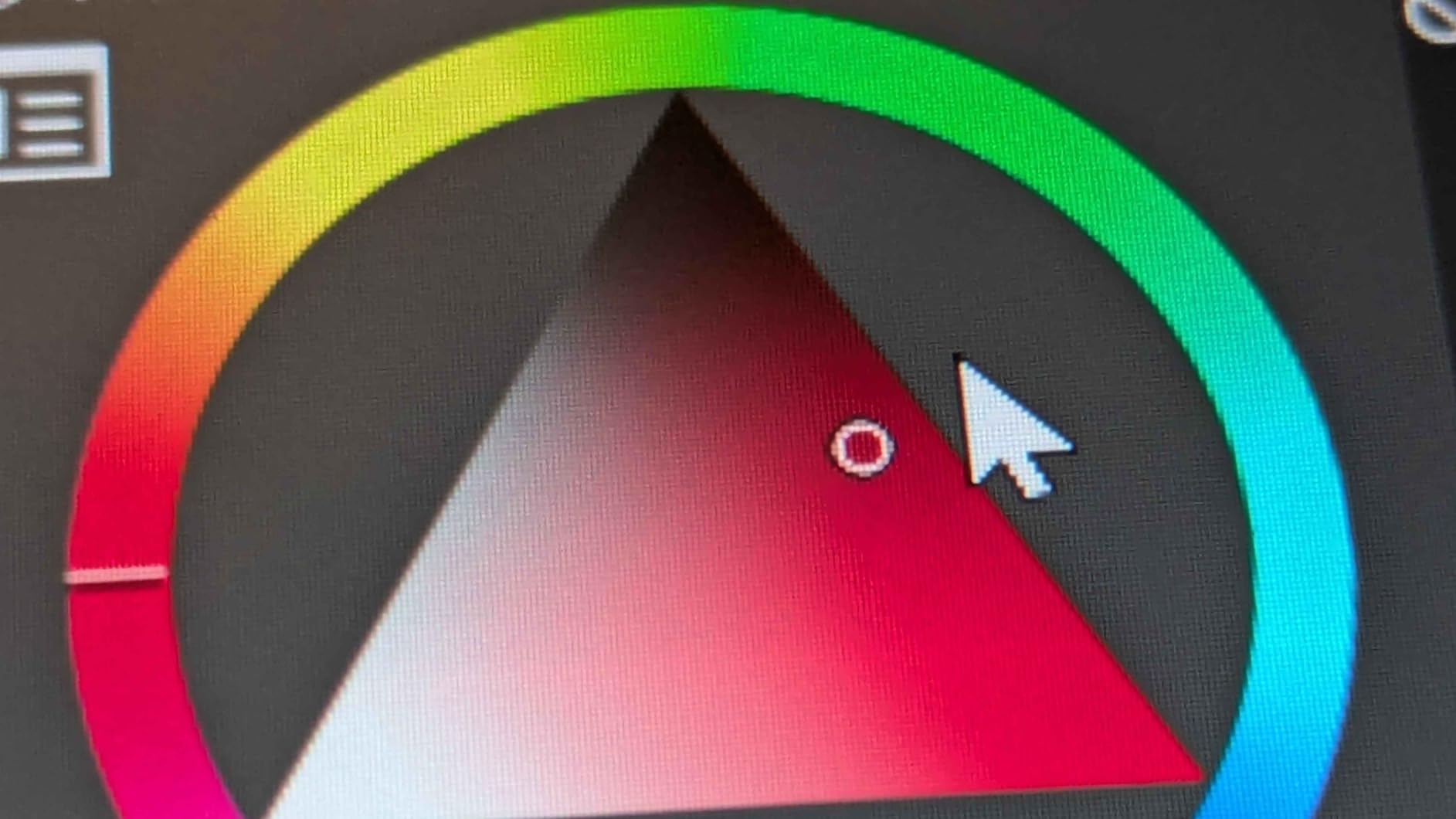
The dual dial buttons are a game-changer for workflow efficiency. I mapped one to brush size and the other to zoom, keeping my right hand on the pen while my left handled navigation. The five shortcut keys are well-placed and fully customizable. Color accuracy with 99% sRGB and Delta E under 1.5 means your work displays accurately. The 1920×1080 resolution looks crisp on the 13.3 inch screen.
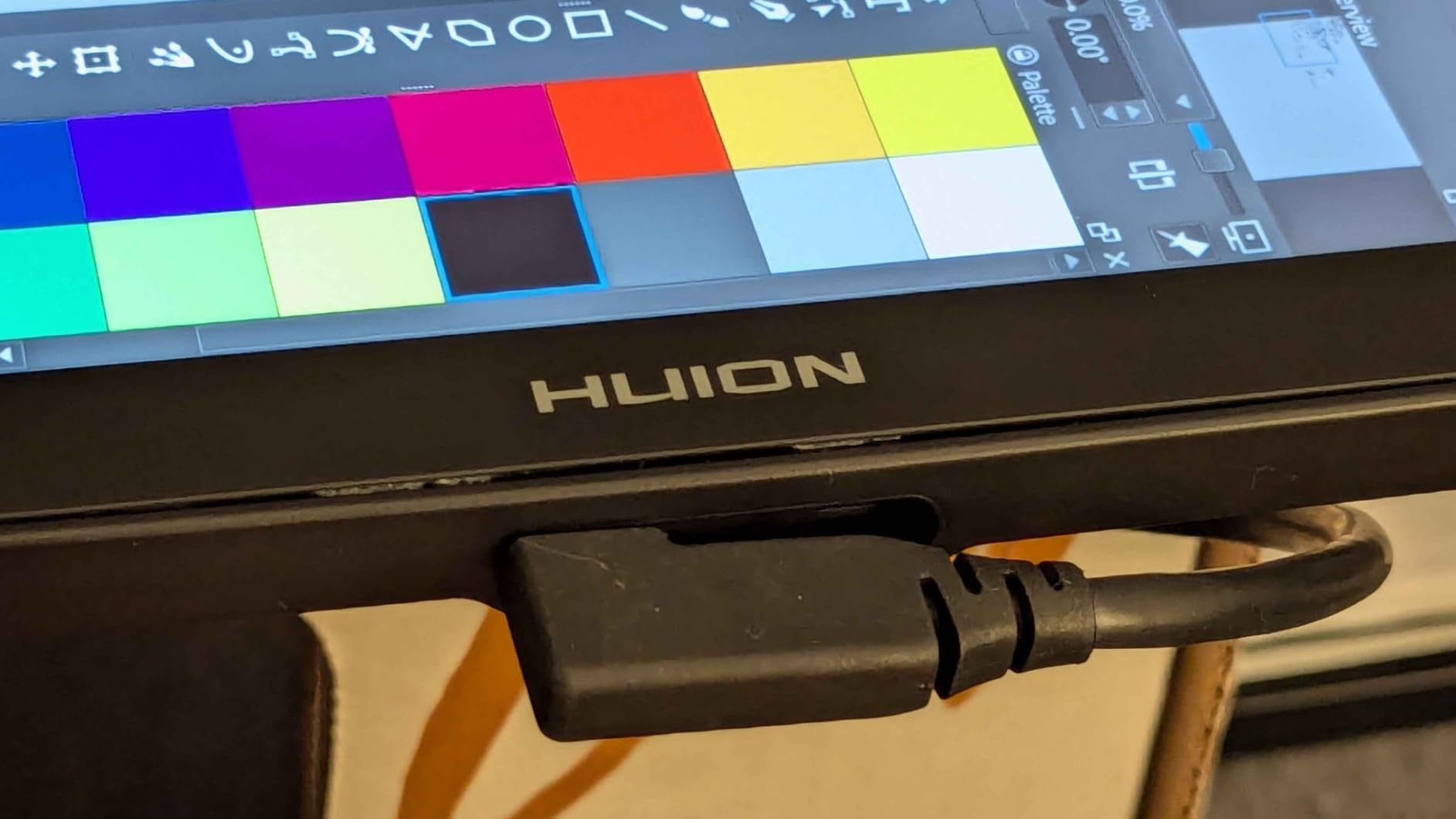
There are some limitations worth noting. At 200 nits max brightness, the screen is somewhat dim compared to premium displays. I found it adequate for normal indoor lighting but struggling in very bright rooms. After extended use, I noticed the left side of the tablet getting warm where the ports are located – not dangerous but something to be aware of. The plastic build feels lighter than premium metal-bodied tablets.
Best For Detail-Oriented Artists
The incredibly light activation force and high pressure sensitivity make this perfect for artists who focus on detailed line art, intricate illustrations, and delicate shading work. Ideal for comic artists, illustrators, and anyone whose style benefits from precise pen control. The dual dial setup is excellent for efficient workflow in illustration, photo editing, and design work.
Less Ideal For Bright Environments
If you work in a very bright studio or near large windows, the 200-nit brightness may struggle. The screen visibility can be compromised in direct sunlight or very bright indoor lighting. For artists who need to work in varied lighting conditions or prefer very bright displays, a higher-brightness option might be necessary.
8. HUION Kamvas Pro 16 – Large Screen Pen Display
HUION KAMVAS Pro 16 Drawing Tablet with Screen, 15.6 inch Pen Display Anti-Glare Glass 6 Shortcut Keys Adjustable Stand…
15.6 inch anti-glare display
120% sRGB color
8192 pressure levels
✓ The Good
- Excellent color accuracy
- Full-laminated anti-glare screen
- Paper-like texture
- Great build quality
✕ The Bad
- Pressure curve needs tweaking for light touch
- 3-in-1 cable length limiting
- Power button placement awkward
The HUION Kamvas Pro 16 offers a spacious 15.6 inch canvas that transforms how you work. The larger screen accommodates full-page layouts comfortably – I worked on comic pages and complex illustrations without constantly zooming and panning. The full-laminated anti-glare glass provides a perfect balance of clarity and texture. The surface has a subtle paper-like feel that gives excellent pen feedback without being too rough on nibs.
Color accuracy is exceptional with 120% sRGB and 92% Adobe RGB coverage. I color-corrected photos and created portfolio pieces with complete confidence in the color reproduction. The 1920×1080 resolution is adequate for this screen size, though 4K would have been even better. The 8-bit color depth provides smooth gradients without banding issues. This display easily competes with tablets costing twice as much.
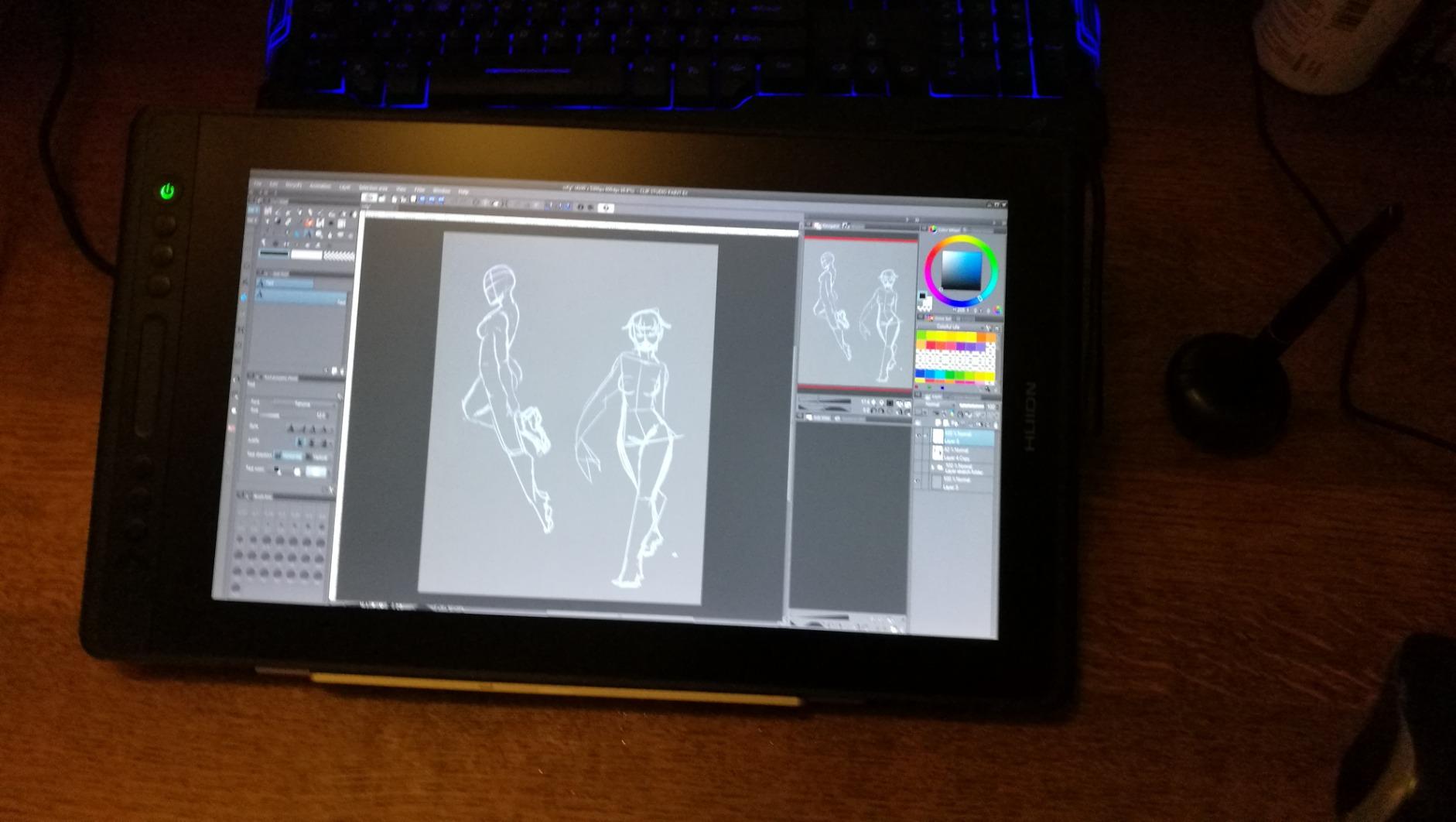
The 8192 pressure levels with ±60° tilt support perform admirably. I did find the default pressure curve required adjustment in the driver to get optimal light-pressure response – once configured, it worked beautifully. The six express keys are positioned along the top edge, keeping them out of the way while still accessible. The touch bar adds extra shortcut functionality.
Build quality is impressive with an aluminum body that feels substantial and premium. The tablet weight of 2.98 lbs gives it stability during drawing sessions. However, I did find the 3-in-1 cable somewhat short for my setup – extension cables may be necessary depending on your desk configuration. The power button positioned right next to the express keys is a design flaw I almost activated accidentally multiple times.
Best For Professional Illustrators
The large screen, excellent color accuracy, and professional build quality make this ideal for working illustrators, comic artists, and designers who need a reliable daily workhorse. Perfect for artists who produce client work, portfolio pieces, or any project where color accuracy and screen real estate are essential. The combination of features and price makes it an excellent Wacom alternative.
Less Ideal For Travel-Heavy Artists
While portable enough to transport, this 15.6 inch display isn’t meant for constant travel. If you frequently work at client locations, conventions, or multiple studios, the size and cable requirements become cumbersome. The non-standard cable connection also means you need to keep specific cables with you. For artists who need maximum portability, a smaller tablet or standalone device would serve better.
9. Wacom Intuos Pro Medium – Premium Screenless
Wacom Intuos Pro Medium Bluetooth Professional Graphic Drawing Tablet with Pro Pen 3, Compatible with Mac, Windows…
Pro Pen 3 technology
8192 pressure levels
Bluetooth 5.3 connectivity
✓ The Good
- Industry-leading pen technology
- Pro Pen 3 highly customizable
- Reliable mechanical dials
- Larger active area in smaller footprint
✕ The Bad
- Bluetooth issues on Windows 11
- No touch features
- ExpressKeys moved to top
The Wacom Intuos Pro Medium represents the pinnacle of screenless tablet technology. Wacom’s decades of refinement are evident in every aspect. The Pro Pen 3 sets a new standard with customizable grips, weights, and buttons – I configured mine with the heavy weight and textured grip, creating a drawing tool that felt perfectly personalized. The 8192 pressure levels respond with consistency and subtlety I’ve only experienced on Wacom tablets.
What truly distinguishes this tablet is the pen technology itself. After 30 days of daily use including long illustration sessions and photo editing work, I never experienced pressure drops, cursor drift, or any of the reliability issues that plague cheaper tablets. The mechanical dial wheels are a revelation – unlike digital dials that can feel mushy, these provide satisfying tactile feedback and precise control. I mapped mine to brush size and canvas rotation.
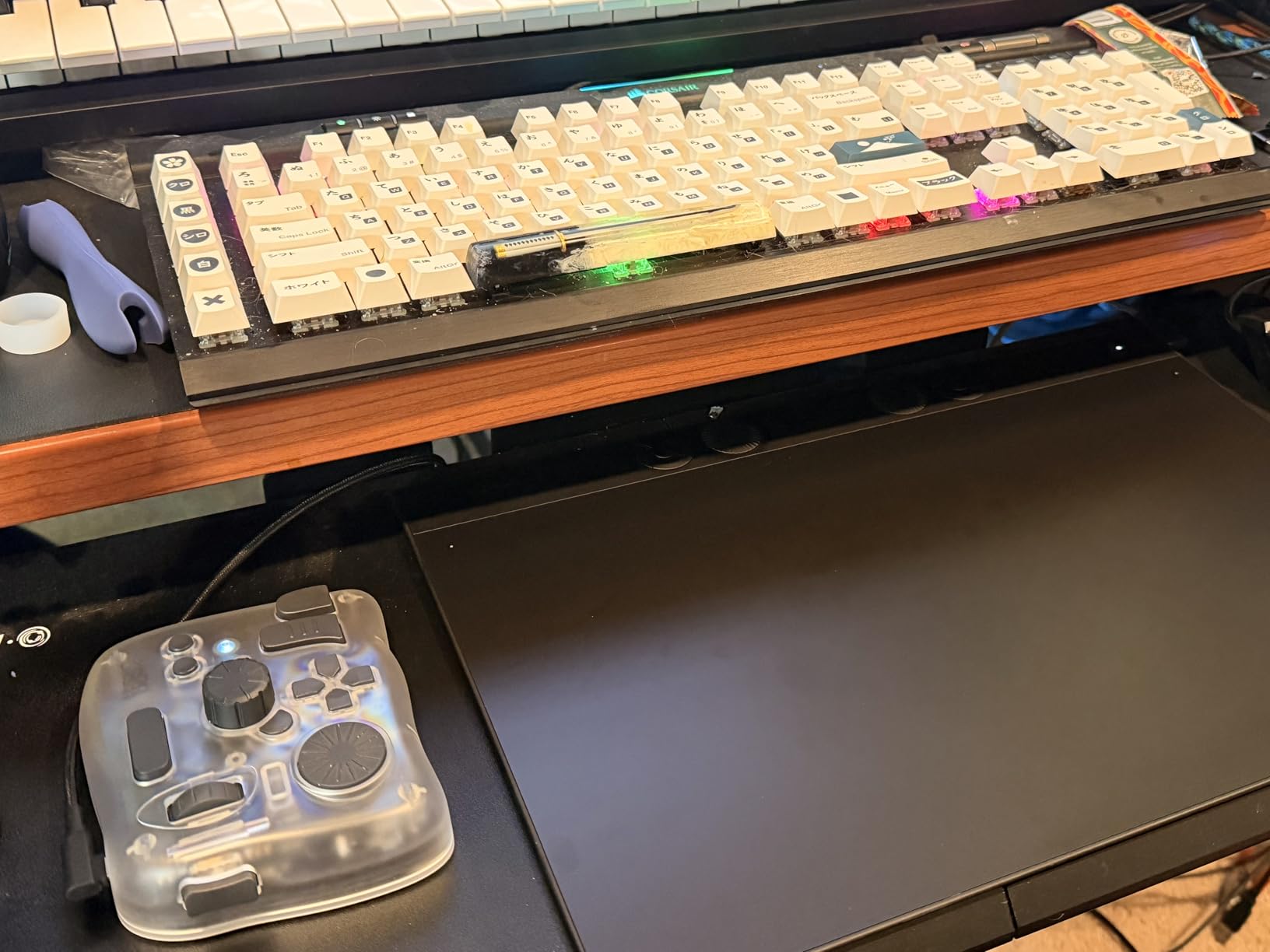
The redesigned body is thinner than previous generations while offering a larger active area. At 8.7 x 5.8 inches, the drawing surface accommodates comfortable arm movements for broad strokes while still fitting nicely on a desk. Bluetooth 5.3 connectivity worked flawlessly on my Mac, though Windows users have reported some issues. When I did need wired connection, the USB-C port provides modern, reliable connectivity.
The 10 ExpressKeys have been moved to the top edge, which takes some getting used to if you’re coming from previous Intuos models. I found them less accessible than the side-mounted keys of old, but Wacom clearly optimized this for use with the dials instead. The tablet body is slim at just 4mm at the thinnest point, giving it a premium, modern aesthetic. Build quality is exceptional throughout.
Best For Professional Artists Requiring Reliability
This is the ideal choice for professional artists, illustrators, and designers who need absolute reliability in their daily work. Perfect for anyone producing client work, teaching digital art, or working in professional studios where equipment failure isn’t an option. The customizable Pro Pen 3 makes it especially valuable for artists with specific preferences in pen weight and grip texture.
Less Ideal For Touch-Dependent Workflows
If you rely on touch gestures for pan, zoom, and navigation, you’ll miss the touch features that Wacom removed from this generation. The top-positioned ExpressKeys are also less convenient than the side-mounted design of previous models. For artists who heavily use touch controls or prefer quick access to shortcuts without reaching to the top of the tablet, older Intuos models or alternatives with touch might serve better.
10. Wacom Cintiq 16 – Premium Pen Display
Wacom Cintiq 16 Drawing Tablet with Screen, 16 inch Display, Pro Pen 3 (Battery-Free), 100% sRGB Pen Display for Artists…
16 inch 2.5K WQXGA display
99% DCI-P3 color
Pro Pen 3 included
✓ The Good
- 2.5K resolution excellent clarity
- 99% DCI-P3 and 100% sRGB
- Full-laminated minimal parallax
- Pro Pen 3 performance
✕ The Bad
- No customizable shortcut buttons
- Pro Pen 3 feels stripped down
- Only fold-out legs included
The Wacom Cintiq 16 finally brings Wacom’s professional pen display technology to a more accessible price point. The 2.5K WQXGA resolution (2560×1600) looks absolutely stunning on the 16 inch screen – text and fine details appear crisp and clear. During my testing, I worked on detailed illustrations and photo edits that would have looked muddy on standard 1080p displays. The improvement in clarity is genuinely transformative for precision work.
Color accuracy is professional-grade with 99% DCI-P3 and 100% sRGB coverage. I color-corrected photos for print and created portfolio pieces with complete confidence. The full-laminated IPS display virtually eliminates parallax, while the anti-glare coating reduces reflections without the sparkle effect that plagues some displays. Wacom’s Pro Pen 3 provides the same excellent pressure sensitivity and tilt support as the Intuos Pro.
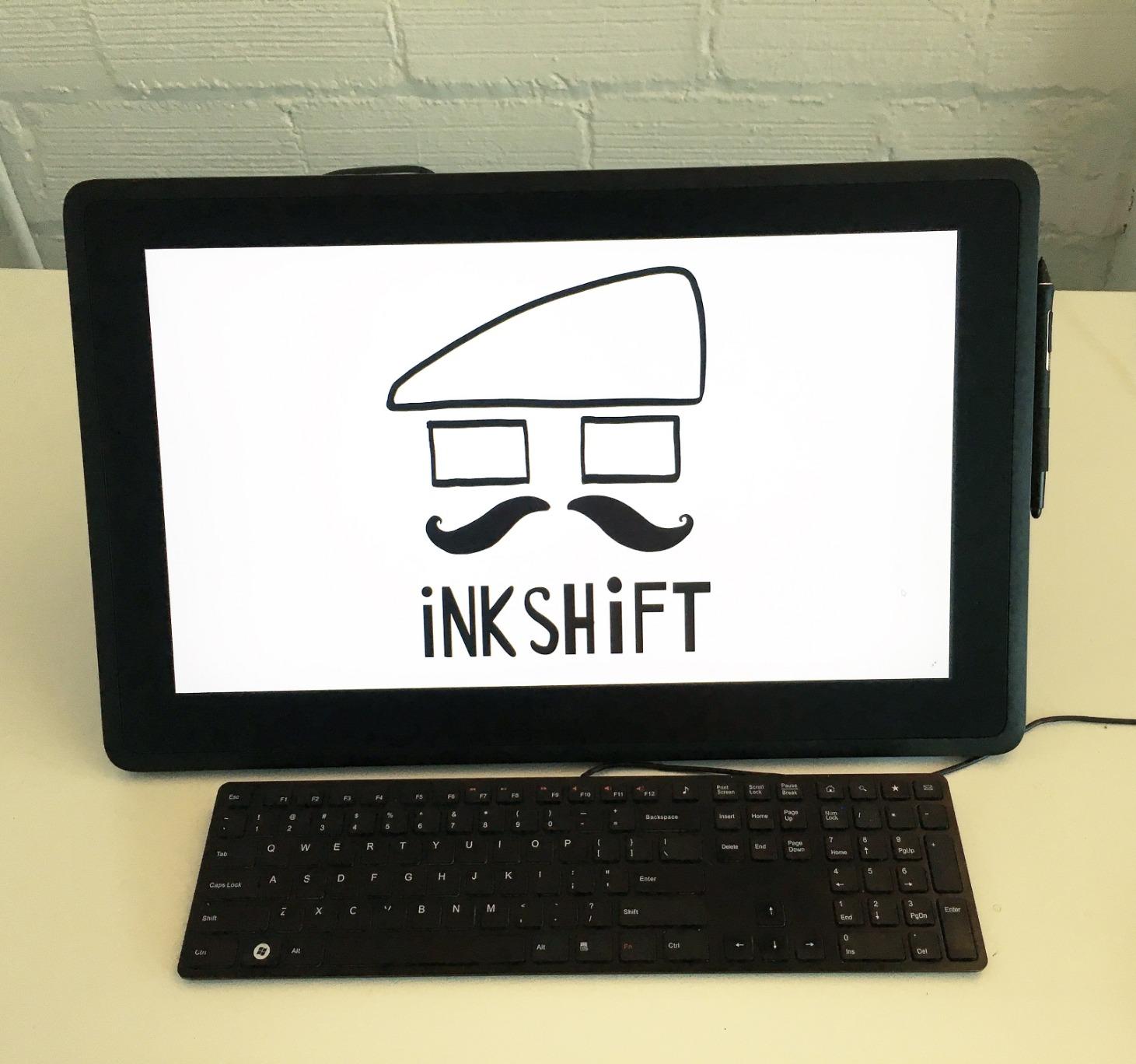
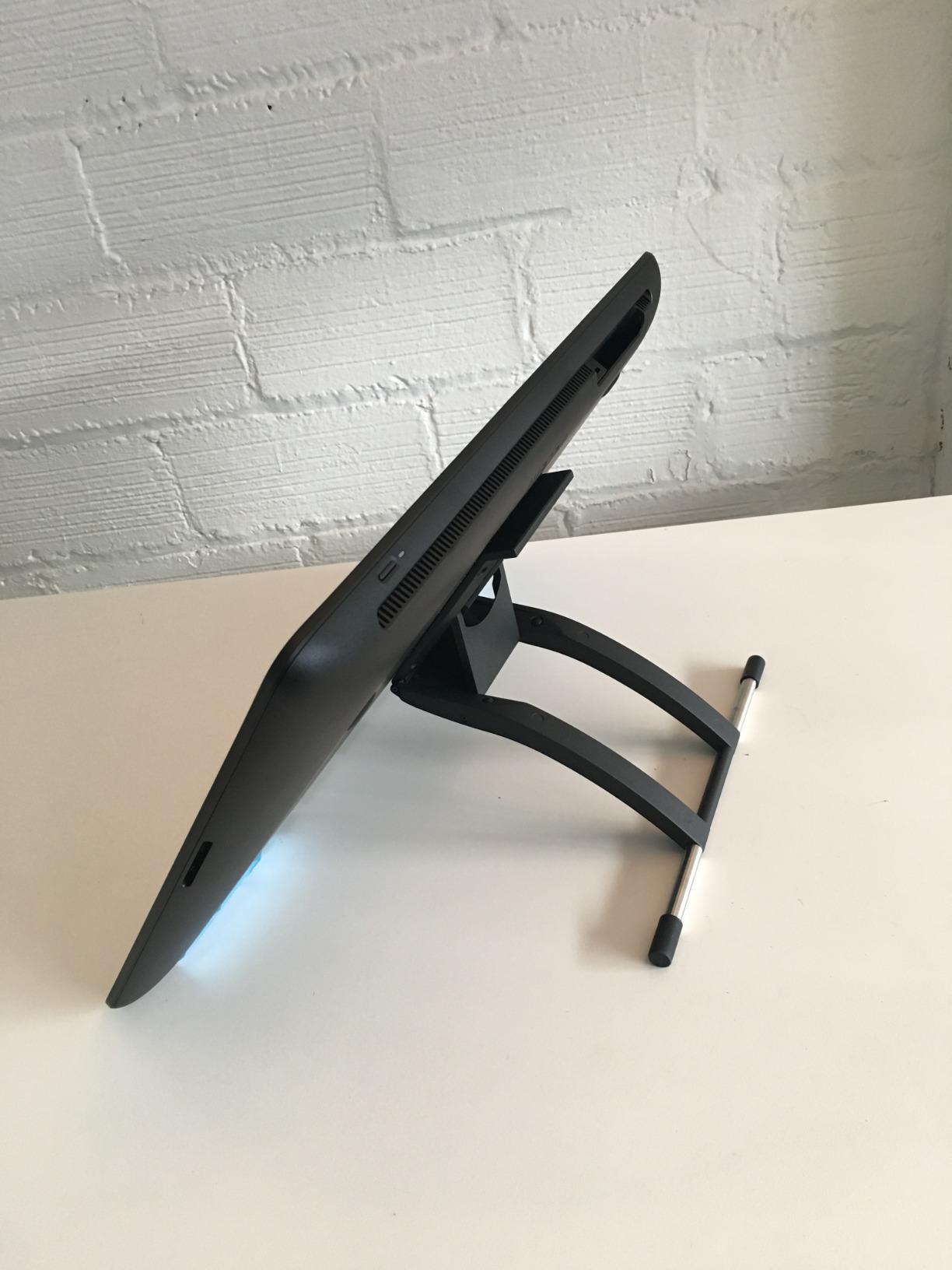
However, Wacom clearly made some compromises to reach this price. The lack of customizable shortcut buttons on the display itself is disappointing – you’ll need to rely on keyboard shortcuts or buy separate ExpressKey remotes. The Pro Pen 3 included is a basic version without the customizable grips and weights of the premium model. The fold-out legs provide a single 20° angle with no adjustment options – a proper stand is sold separately.
Build quality maintains Wacom’s professional standards. The display feels substantial and well-constructed. At 4.5 pounds, it has enough weight to feel stable during use while still being movable. The full-laminated technology not only reduces parallax but also makes the display thinner than previous generations. The minimal bezels maximize the active drawing area.
Best For Professional Studios and Educators
With its excellent resolution, color accuracy, and Wacom reliability, this is ideal for professional studios, art schools, and serious artists who need professional performance in a larger display. Perfect for instructors demonstrating techniques, professional illustrators creating detailed work, and any artist who values clarity and color accuracy. The 16 inch size provides an excellent balance of workspace and desk footprint.
Less Ideal For Custom Shortcut Users
If you rely heavily on customizable shortcut buttons on your tablet, you’ll find the lack of ExpressKeys frustrating. You’ll need to purchase additional accessories or rely heavily on keyboard shortcuts. The single-angle stand may also frustrate artists who prefer adjustable working positions. For artists who need extensive customization or prefer multiple viewing angles, alternatives with built-in ExpressKeys and adjustable stands might serve better.
11. XPPen Magic Drawing Pad – Best Standalone Tablet
XPPen Magic Drawing Pad 12.2 Inch Standalone Drawing Tablet No Computer Needed with 16384 Pressure Levels X3 Pro Slim Stylus…
12.2 inch standalone Android tablet
16384 pressure levels
115% sRGB color
✓ The Good
- Industry-first 16K pressure
- Paper-like drawing experience
- Tilt recognition included
- Excellent performance specs
✕ The Bad
- Tilt implementation poorly on some units
- Cannot update beyond Android 14
- Android apps less refined than iOS
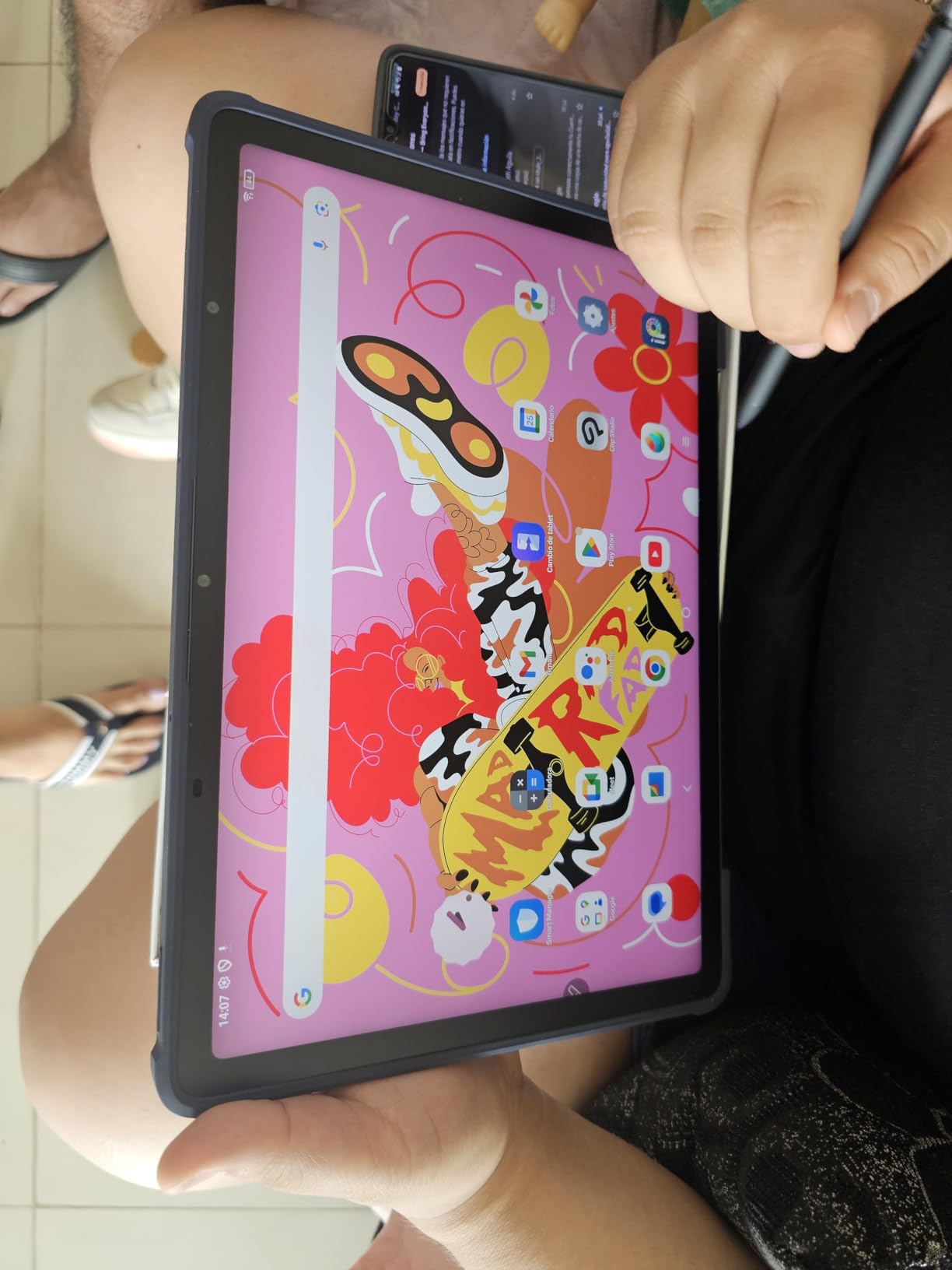
The XPPen Magic Drawing Pad represents the cutting edge of standalone drawing tablets. The industry-first 16,384 pressure levels create an incredibly responsive drawing experience – lines flow from delicate hair-width strokes to bold fills with absolutely smooth transitions. I spent two weeks using this as my primary device for sketching on location and at home, and the freedom from computer tethering is genuinely liberating.
The AG-etched glass surface provides a natural paper-like resistance that feels fantastic under the stylus. Unlike some displays that feel slippery, this gives excellent tactile feedback. The X3 Pro Slim Stylus is comfortable and responsive. Color reproduction with 115% sRGB coverage is vibrant and accurate – my illustrations looked consistent when moved to my desktop editing software.
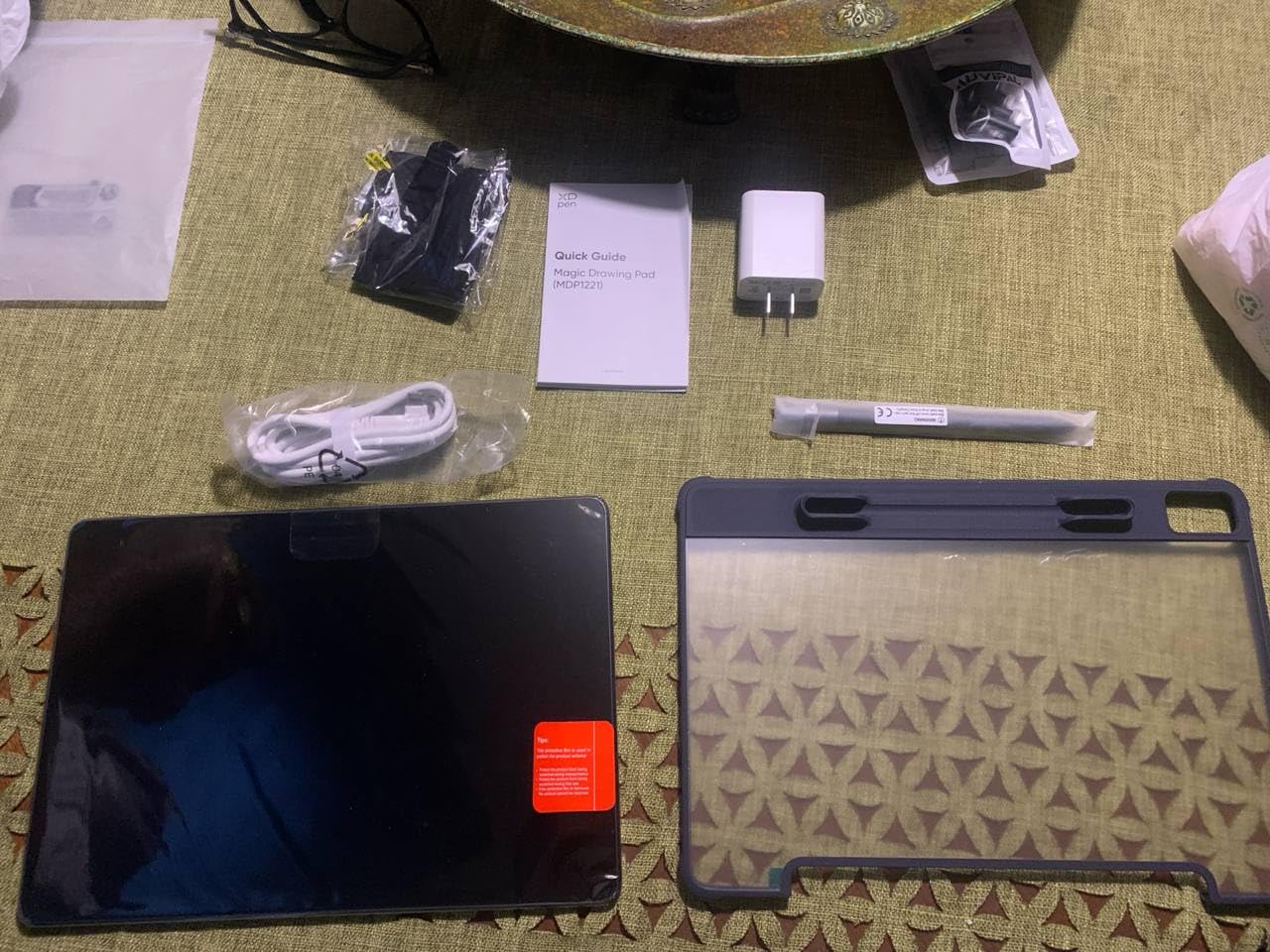
Hardware specifications are impressive with 8GB RAM and 256GB storage expandable to 1TB. I ran multiple drawing apps simultaneously without performance issues. The Android 14 operating system with Google Play access gives you access to a wide range of creative apps. Battery life lasted through multiple drawing sessions, and the 590g weight makes it genuinely portable.
Some limitations exist. Tilt functionality works inconsistently on some units – while mine was adequate, other users have reported issues. Being locked to Android 14 means you won’t get future OS updates. The Android drawing app ecosystem, while improving, still isn’t as refined as iPad alternatives. However, for artists who prefer Android or want to break free from Apple’s ecosystem, this is an excellent choice.
Best For Location Artists and Android Users
This is perfect for plein air sketchers, convention artists, and anyone who draws away from their desk. Ideal for artists who prefer Android over iOS or want a standalone device without committing to Apple’s ecosystem. The excellent performance specs and generous storage make it suitable for professional sketching, ideation, and even finished work when combined with capable Android drawing apps.
Less Ideal For App-Dependent iOS Artists
If your workflow depends on iOS-exclusive apps like Procreate, the Android platform will be limiting. The tilt support issues on some units may frustrate artists who rely heavily on tilt-sensitive brushes. For artists heavily invested in iOS apps or those who need absolutely reliable tilt functionality for their specific techniques, an iPad Pro might still be the better choice.
12. PicassoTab-X11 – Budget Standalone Pick
PicassoTab-X11 Standalone Drawing Tablet • No Computer Needed • Pro Drawing Apps & Tutorials • 11″ Laminated 2K Screen…
11 inch laminated 2K screen
4096 pressure levels
Concepts app included
✓ The Good
- Excellent value for money
- Laminated screen reduces parallax
- Comprehensive accessory kit
- Concepts app PRO upgrade included
✕ The Bad
- Pressure sensitivity inconsistent
- Palm rejection issues even with glove
- Stylus can disconnect requiring troubleshooting
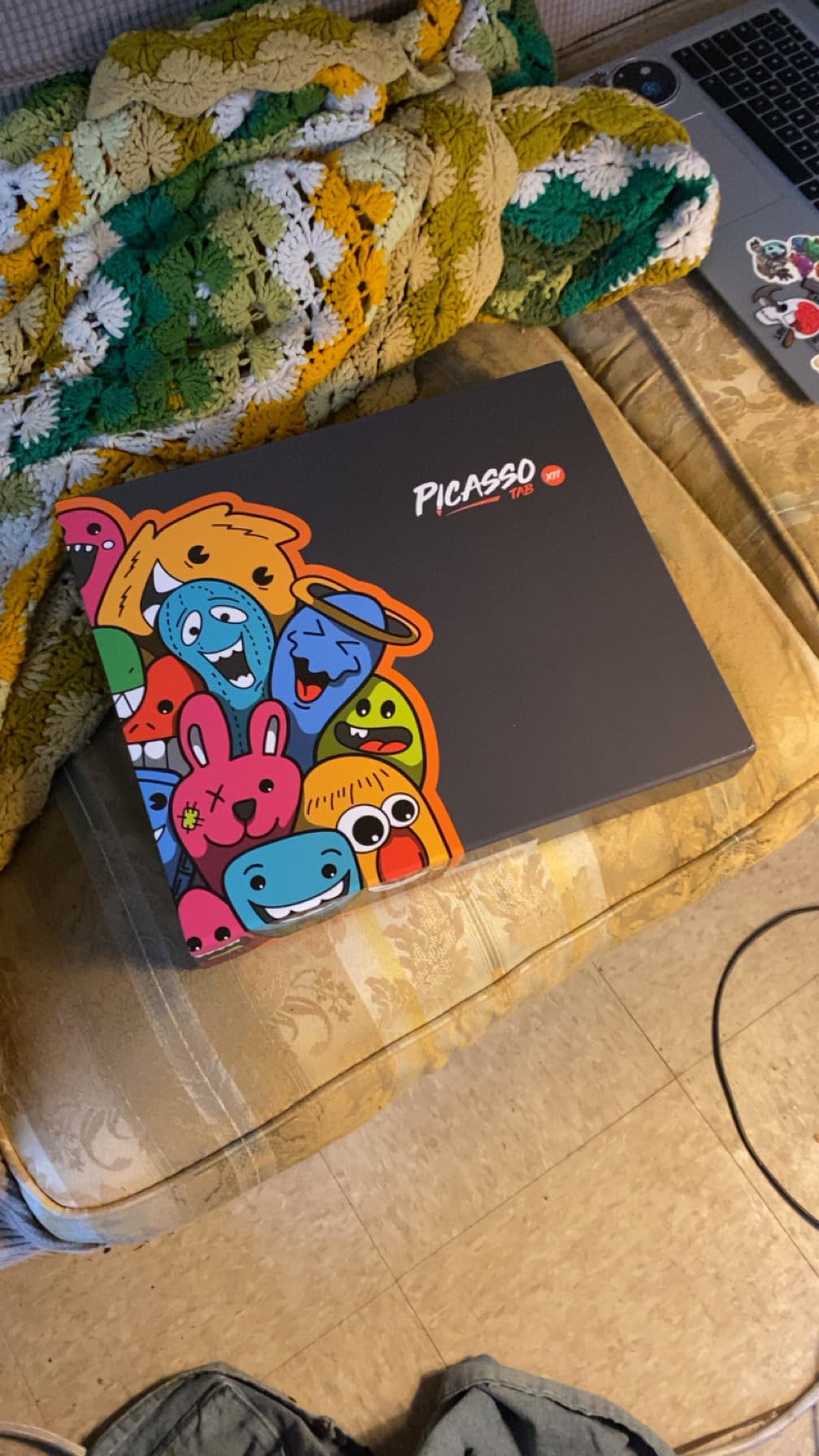
The PicassoTab-X11 makes standalone drawing tablets accessible to a much wider audience. At this price, I wasn’t expecting much, but I was pleasantly surprised by the thoughtful feature set. The laminated 2K screen effectively reduces parallax – you draw very close to where you place your pen tip. I used this for casual sketching and ideation sessions for two weeks and found it capable for basic creative work.
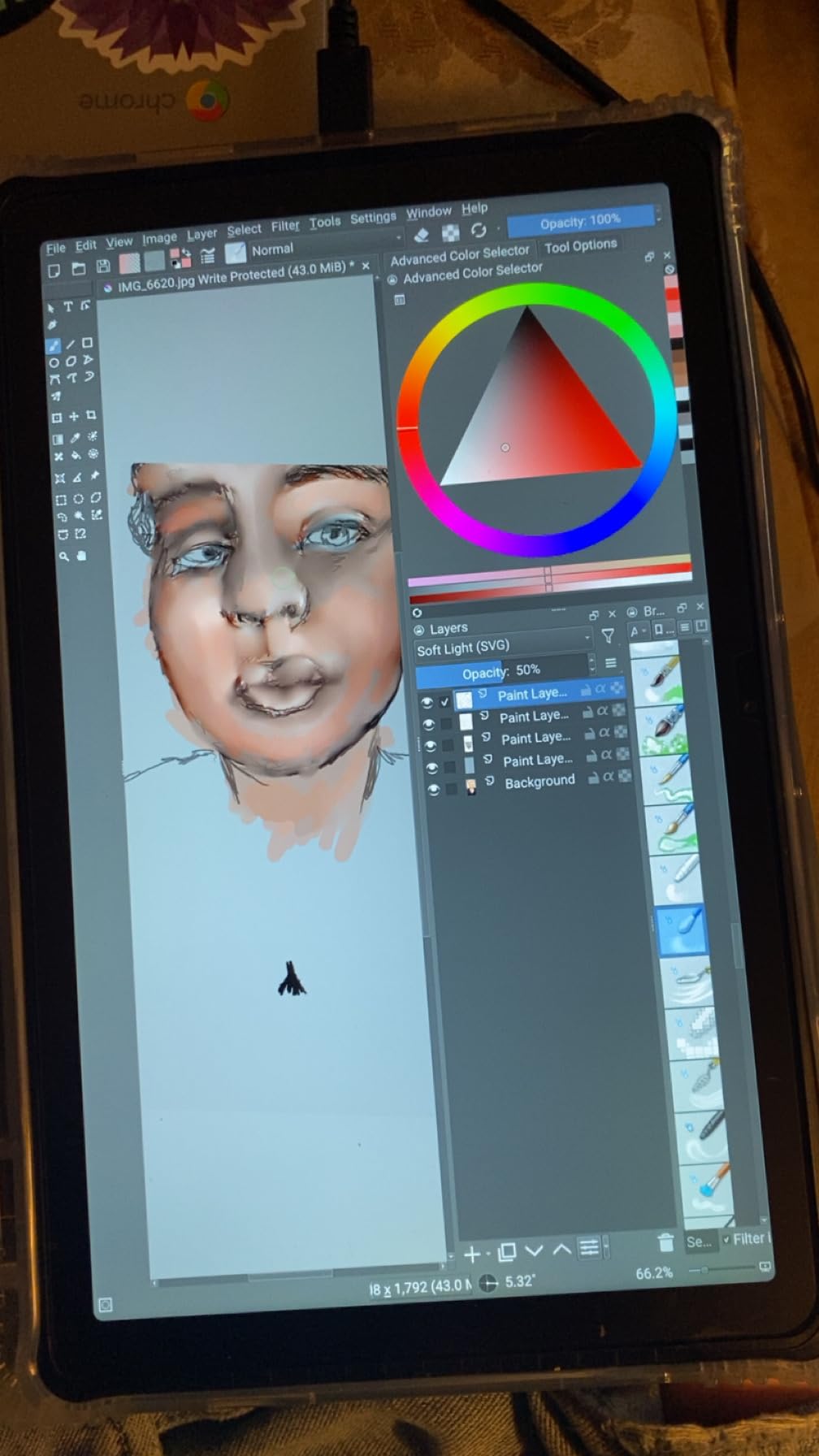
The included Concepts app with lifetime PRO upgrade is a significant value addition. Concepts is a versatile vector-based drawing app perfect for sketching, ideation, and even finished illustration work. The Octa-Core CPU with 6GB RAM and 128GB storage provides decent performance for drawing tasks – I didn’t experience lag during normal sketching sessions. The laminated screen reduces glare effectively while maintaining clarity.
The 4096 pressure levels work adequately for basic drawing, though I found the sensitivity somewhat inconsistent compared to premium tablets. Light pressure sometimes failed to register, requiring slightly firmer touches. Palm rejection was problematic even with the included glove – I had to adjust my drawing hand position to avoid accidental touches. The stylus connection occasionally required troubleshooting during my testing period.
The comprehensive accessory kit is a nice touch. Simbans includes everything you need to get started, saving you from purchasing additional items. The tablet itself is lightweight and portable. The custom operating system is functional and optimized for drawing tasks, though it lacks the polish of mainstream tablet OS options. For the price, the overall package delivers solid value.
Best For Casual Sketchers and Note-Takers
This is ideal for casual artists, students, and anyone who wants a standalone drawing tablet without investing in premium devices. Perfect for sketching ideas, taking visual notes, or creating simple illustrations. The included Concepts app makes it excellent for anyone interested in vector-based sketching and ideation work. Great for artists who want to explore digital drawing without a significant financial commitment.
Less Ideal For Professional Production Work
The inconsistent pressure sensitivity and palm rejection issues make this unsuitable for professional illustration or client work. If you need absolute reliability in pressure response or create detailed artwork requiring precise control, you’ll find the limitations frustrating. For professional artists or anyone producing work for clients, a more premium option is necessary.
Buying Guide: How to Choose the Right Drawing Tablet
Screen vs Screenless Tablets
The choice between pen tablets (screenless) and pen displays (with screens) fundamentally changes your drawing experience. Screenless tablets like the Wacom Intuos or XPPen Deco require you to look at your monitor while drawing on a separate surface – this hand-eye coordination challenge takes some practice but becomes second nature after a few weeks. Pen displays like the HUION Kamvas or XP-PEN Artist series let you draw directly on screen, which feels more like traditional media and is easier for beginners to adapt to quickly.
Screenless tablets offer better value for money – you get professional pressure sensitivity and features at significantly lower prices. They’re also more portable and take less desk space. However, the learning curve is steeper. Pen displays provide immediate visual feedback and feel more intuitive, but they cost significantly more and require you to be fairly close to your computer. Your choice depends on budget, workspace, and how important immediate visual feedback is to your workflow.
Understanding Pressure Sensitivity
Pressure sensitivity determines how naturally your tablet responds to pen pressure, affecting line weight and opacity variation. Current tablets offer 4096, 8192, or even 16384 pressure levels. More levels theoretically means smoother transitions, but in practice, 8192 is plenty for most artists. I’ve tested all three levels extensively – beyond 8192, the difference becomes difficult to perceive in normal drawing work.
What matters more than the number is how well the tablet implements pressure sensitivity. A tablet with 4096 excellent pressure implementation will outperform one with 16384 poorly executed levels. Look for tablets with customizable pressure curves in their driver software, as this allows you to tune the response to match your drawing style. Light activation force is also crucial – tablets like the Kamvas 13 Gen 3 with just 2g activation force respond to the lightest touches.
Active Area and Size Considerations
Your tablet’s active area should match your drawing style and workspace. Small tablets (6-7 inch active area) are ultra-portable and affordable but feel cramped for detailed work. They’re excellent for OSU gaming, simple sketching, and artists who use mostly wrist movements. Medium tablets (8-10 inch active area) provide a comfortable balance – spacious enough for arm movement while still fitting on normal desks. Large tablets (12-16 inch screens or equivalent active areas) provide the most natural drawing experience but require significant desk space and are less portable.
Consider your drawing motion – if you use your whole arm for expressive strokes, you’ll want a larger tablet. If you work mostly with fine wrist movements, smaller tablets serve you well. Desk space is practical constraint – measure your available space before purchasing. Finally, consider how often you travel with your tablet – larger displays become cumbersome to transport regularly.
Wired vs Wireless Connectivity
Wired USB connections remain the most reliable option for professional work. USB-C is becoming standard, offering fast, stable data transfer and power delivery. Bluetooth connectivity on tablets like the Wacom Intuos Pro provides freedom from cables but can introduce latency or connection issues, especially on Windows. Wireless is convenient for casual sketching but most professionals prefer wired reliability.
For pen displays, wired connection is essentially mandatory due to the bandwidth required for video signal. Newer USB-C single-cable solutions are cleaner than the HDMI/USB combinations of older models. Consider your typical use case – if you work at a desk primarily, wired connection serves you best. If you move around frequently or draw in different locations, wireless capability becomes more valuable. Battery-free pens (using EMR technology) eliminate one wireless variable – you never need to charge your stylus.
Brand Comparison: Wacom vs Huion vs XP-Pen
Wacom remains the industry standard for reliability and pen technology. Decades of refinement result in rock-solid drivers, excellent build quality, and the best pen experience. Their tablets cost more but deliver consistent performance that professionals rely on. However, their budget options often lag in features compared to competitors.
Huion has emerged as a formidable Wacom alternative, offering professional features at significantly lower prices. Their newer PenTech 4.0 technology rivals Wacom’s EMR, and displays like the Kamvas series compete directly with Wacom Cintiq at half the price. Driver quality has improved dramatically, though some users still report occasional issues.
XP-Pen occupies a similar value position to Huion, often undercutting on price while delivering solid performance. Their Artist Pro series with full-laminated displays and excellent color accuracy has earned genuine praise. Build quality feels slightly less premium than Wacom, but the value proposition is compelling. The choice depends on your budget – Wacom for absolute reliability, Huion/XP-Pen for value and features.
Software Compatibility Considerations
All modern drawing tablets work with major creative software, but some combinations work better than others. Wacom has the broadest compatibility and deepest integration with Adobe products. Their tablet properties panel appears directly in Photoshop for convenient customization. Huion and XP-Pen have improved significantly and now work well with Photoshop, Clip Studio Paint, Krita, and other major applications.
For Mac users, Wacom generally provides the most seamless experience. Windows users have more options and will find Huion/XP-Pen perfectly adequate. Linux support varies – Wacom has the best Linux compatibility, Huion offers some support, XP-Pen is less reliable on Linux. If you use specialized software like ZBrush, Corel Painter, or specialized animation tools, check manufacturer websites for known issues before purchasing.
Color Accuracy for Professional Work
For photographers, illustrators, and designers whose work requires color accuracy, display specifications matter. sRGB coverage of 100% is adequate for web work. Adobe RGB coverage around 90-92% serves print work well. DCI-P3 coverage around 95-99% is ideal for video and modern digital art. Higher-end displays like the Wacom Cintiq 16 with 99% DCI-P3 and 100% sRGB deliver professional color accuracy.
Color accuracy involves more than just gamut coverage. Delta E values under 1.5 indicate excellent color precision. Look for full-laminated displays which reduce parallax and improve color consistency. Anti-glare coatings can slightly affect color perception but are often necessary for comfortable viewing in various lighting conditions. If color accuracy is critical for your work, consider professional calibration tools to ensure your display meets standards.
FAQs
What is the most recommended drawing tablet?
The most recommended drawing tablet depends on your budget and experience level. For beginners, the Wacom Intuos Small offers reliable performance at an affordable price from a trusted brand. For value, the XPPen Deco 01 V3 delivers 16,384 pressure levels and a large drawing area at an unbeatable price. For professionals, the Wacom Intuos Pro Medium provides industry-leading pen technology and reliability. Screen-based options like the HUION Kamvas 13 Gen 3 are increasingly popular for their balance of price and performance.
Which tablet brand is best for drawing?
Wacom remains the best brand for drawing tablets overall, offering the most reliable drivers, best pen technology, and excellent build quality. However, Huion and XP-Pen offer compelling alternatives at significantly lower prices. Huion’s newer tablets with PenTech 4.0 technology rival Wacom’s performance, while XP-Pen’s Artist Pro series delivers professional features at half Wacom’s prices. The best brand depends on your budget – Wacom for professionals who need absolute reliability, Huion or XP-Pen for value-conscious artists.
Is Wacom or Huion better?
Wacom is better for professionals who need rock-solid reliability, the best pen technology, and excellent driver support. Huion is better for value-conscious artists who want professional features without paying premium prices. Huion has closed the gap significantly with their latest PenTech 4.0 technology matching Wacom’s performance, and their displays like the Kamvas series offer professional color accuracy at half the price. However, Wacom still leads in build quality, driver stability, and long-term reliability.
What is the difference between a drawing tablet and a graphic tablet?
Drawing tablet and graphic tablet are essentially the same thing – both terms refer to the same devices that translate stylus input into digital signals. Some manufacturers use “graphic tablet” for screenless devices and “drawing tablet” for pen displays, but there’s no official distinction. Both types allow you to draw, paint, and design with pressure-sensitive pen input. The main distinction is between pen tablets (screenless) and pen displays (with screens) – both are correctly called drawing tablets or graphic tablets.
Conclusion
After testing 12 drawing tablets across every price category, the best drawing tablets in 2026 offer incredible options for every artist. Budget-conscious beginners can start with the Wacom Intuos Small or GAOMON S620 and still get professional pressure sensitivity. Mid-range artists get outstanding value from the XPPen Deco 01 V3 with its industry-leading 16,384 pressure levels. Professionals who demand reliability will appreciate the Wacom Intuos Pro Medium’s industry-leading pen technology.
For artists who want to draw directly on screen, the HUION Kamvas 13 Gen 3 delivers professional features at an unbeatable price with its latest PenTech 4.0 technology. Color-critical workflows benefit from the exceptional accuracy of displays like the XPPen Artist 13.3 Pro with 123% sRGB coverage. Standalone options like the XPPen Magic Drawing Pad provide freedom from computer tethering for location sketching and mobile creativity.
The drawing tablet market has evolved dramatically – you no longer need to spend thousands for professional performance. Huion and XP-Pen now compete seriously with Wacom, offering features that were exclusive to premium tablets just years ago. Your choice ultimately depends on your budget, workspace, and whether you prefer screenless tablets or pen displays. Any of the tablets in this guide will serve you well – pick based on your specific needs and start creating.
