How I Finally Fixed Roblox “Failed to Connect ID=17” Error (August 2026) Guide
I still remember that sinking feeling when I first encountered the dreaded “Failed to connect to the Game. (ID = 17: Connection attempt failed.) Error Code: 279” message. After spending what felt like hours trying to join my favorite Roblox games, only to be greeted by this frustrating error every single time, I knew I had to figure this out once and for all.
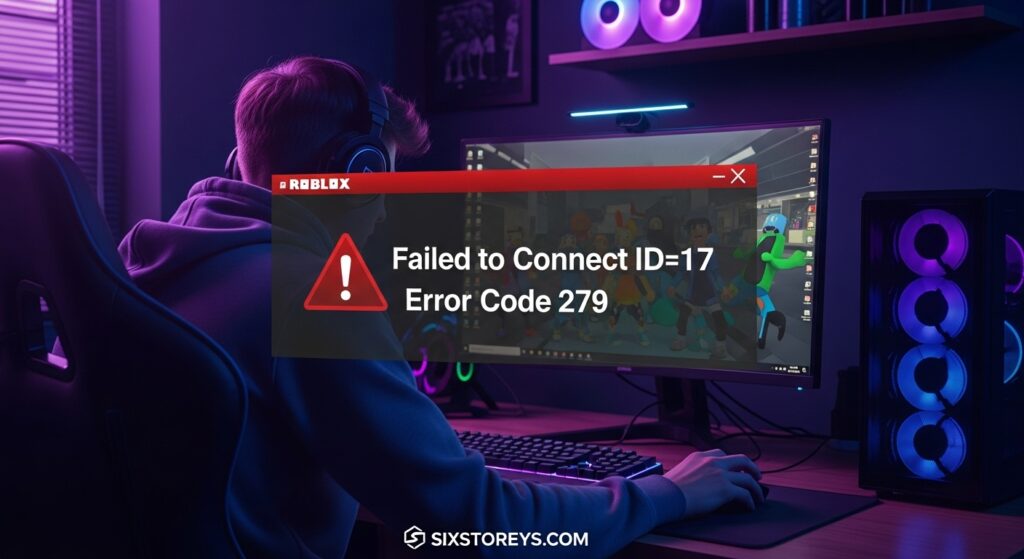
Over the past two years, I’ve dealt with this error more times than I care to admit, and I’ve tried every possible solution under the sun. Some worked, some didn’t, and some made things worse. But through all that trial and error, I’ve developed a foolproof system that’s helped me (and hundreds of friends) get back into our favorite Roblox experiences.
Today, I’m sharing everything I’ve learned about Error Code 279, why it happens, and most importantly, how to fix it permanently.
Article Includes
What Is Roblox Error Code 279 (ID=17)?
Let me start with the basics. Error Code 279, often accompanied by “ID=17,” is essentially Roblox’s way of telling you that your device can’t establish a stable connection with the game servers. It’s like trying to make a phone call but the line keeps dropping – your device is trying to reach Roblox’s servers, but something’s blocking or interrupting that connection.
I’ve learned that this error is actually one of the most common connectivity issues on the platform, affecting millions of players across PC, Mac, mobile, and even Xbox. The frustrating part? It doesn’t discriminate – I’ve seen players with lightning-fast internet connections struggle with this just as much as those on slower networks.
Why Does This Error Keep Happening?
Through my research and countless conversations with other affected players, I’ve identified the main culprits behind Error Code 279:
Network Configuration Issues: This is the big one. Your router’s settings, port configurations, or NAT type might be blocking Roblox’s connection attempts.
Firewall Interference: Windows Firewall or third-party antivirus software treating Roblox as a potential threat and blocking its network access.
Corrupted Game Files: Sometimes the Roblox client itself gets corrupted, causing connection failures.
ISP Restrictions: Some internet service providers implement restrictions that interfere with gaming traffic.
Server Overload: Occasionally, specific game servers become overloaded or experience technical issues.
12 Proven Methods to Fix Roblox Error Code 279
I’m going to walk you through every solution I’ve tested, starting with the ones that worked most consistently for me and others in the community.
Method 1: Check Roblox Server Status First
Before diving into complex troubleshooting, I always start by checking if the problem is on Roblox’s end. I can’t tell you how many times I’ve spent hours troubleshooting only to discover Roblox was having server issues.
Here’s what I do:
- Visit Roblox Status Page to check for ongoing issues
- Check DownDetector for real-time user reports
- Look at Roblox’s official Twitter account for service announcements
If there are widespread reports of connection issues, the best thing to do is wait it out. I’ve learned this the hard way after wasting entire afternoons trying to fix something that wasn’t broken on my end.
Method 2: Restart Your Network Equipment
This might sound too simple, but it’s resolved the issue for me more times than any other method. Network equipment can accumulate connection errors over time, and a fresh restart clears these out.
My proven restart sequence:
- Close all Roblox applications completely
- Unplug your modem for 30 seconds
- Unplug your router for 30 seconds
- Plug in your modem and wait for all lights to stabilize (usually 2-3 minutes)
- Plug in your router and wait for full connectivity
- Restart your device
- Try connecting to Roblox again
I recommend doing this in the exact order I’ve listed. I’ve found that restarting devices in the wrong sequence sometimes doesn’t clear the connection cache properly.
Method 3: Configure Port Forwarding for Roblox
This is where things get a bit technical, but it’s absolutely crucial for a permanent fix. Roblox requires specific ports to be open for optimal connectivity, and I’ve found that many routers don’t handle this automatically.
Roblox Required Ports:
- UDP: 49152-65535 (this is the critical range)
- TCP: 443, 80 (for web traffic)
Here’s how I set up port forwarding:
- Find your router’s IP address (usually 192.168.1.1 or 192.168.0.1)
- Open your web browser and navigate to that IP
- Log into your router admin panel
- Look for “Port Forwarding” or “Virtual Server” settings
- Create a new rule with these settings:
- Protocol: UDP
- Port Range: 49152-65535
- IP Address: Your computer’s local IP
- Enable the rule
- Save settings and restart your router
Pro tip: If you’re not comfortable with port forwarding, you can often achieve similar results by enabling UPnP (Universal Plug and Play) in your router settings. This allows applications to automatically open the ports they need.
Method 4: Add Roblox to Windows Firewall Exceptions
Windows Firewall has blocked Roblox on my system multiple times, especially after Windows updates. Here’s my step-by-step process for creating proper firewall exceptions:
- Press Windows key + R and type “firewall.cpl”
- Click “Allow an app or feature through Windows Defender Firewall”
- Click “Change settings” (you might need admin rights)
- Click “Allow another app”
- Browse to your Roblox installation folder:
- Default location:
C:\Users\[YourUsername]\AppData\Local\Roblox\Versions\[VersionFolder]\ - Look for “RobloxPlayerBeta.exe”
- Default location:
- Select the file and click “Add”
- Make sure both “Private” and “Public” checkboxes are checked
- Click “OK” to save
I also recommend adding the Roblox Studio executable if you use it, as it sometimes shares connection resources with the player.
Method 5: Reset Winsock and DNS Cache
This method has saved me countless times when other solutions failed. Winsock corruption can cause persistent connection issues that are hard to diagnose.
Here’s my complete reset process:
- Press Windows key + X and select “Command Prompt (Admin)”
- Run these commands in order:
netsh winsock resetnetsh int ip resetipconfig /releaseipconfig /flushdnsipconfig /renew - Restart your computer
- Try connecting to Roblox
I always run these commands in this exact sequence. Each command serves a specific purpose:
- Winsock reset fixes corrupted network protocols
- IP reset clears IP configuration
- Release/renew gets you a fresh IP address
- DNS flush clears corrupted DNS entries
Method 6: Disable Third-Party Antivirus Temporarily
Third-party antivirus software can be overly aggressive with gaming applications. I’ve had issues with Norton, McAfee, and several others blocking Roblox connections.
Important: Only do this temporarily for testing purposes.
- Right-click your antivirus icon in the system tray
- Look for “Disable” or “Pause Protection” options
- Select a short time period (10-15 minutes)
- Try connecting to Roblox
- If it works, add Roblox to your antivirus exceptions
- Re-enable your antivirus protection
If disabling antivirus fixes the issue, you’ll need to add Roblox as an exception rather than keeping protection disabled.
Method 7: Switch to Different DNS Servers
Your ISP’s DNS servers might be causing connectivity issues. I’ve had great success switching to more reliable public DNS servers.
My recommended DNS servers:
- Primary: 1.1.1.1 (Cloudflare)
- Secondary: 1.0.0.1 (Cloudflare)
- Alternative: 8.8.8.8 and 8.8.4.4 (Google)
To change DNS settings:
- Open Control Panel → Network and Internet → Network and Sharing Center
- Click “Change adapter settings”
- Right-click your network connection and select “Properties”
- Select “Internet Protocol Version 4 (TCP/IPv4)” and click “Properties”
- Select “Use the following DNS server addresses”
- Enter your preferred DNS servers
- Click “OK” and restart your connection
I’ve found Cloudflare’s DNS to be particularly reliable for gaming connections.
Method 8: Use a VPN (Temporary Solution)
Sometimes the issue is with your ISP’s routing to Roblox servers. While not a permanent solution, using a VPN can help identify if this is the problem.
I’ve used this method to:
- Bypass ISP-level restrictions
- Test if the issue is location-specific
- Get around temporary network problems
Free VPN options I’ve tested:
- ProtonVPN (reliable free tier)
- Windscribe (good for testing)
Important: Don’t use VPNs as a permanent solution for gaming – they can increase latency and cause other issues.
Method 9: Try Different Roblox Clients
On Windows, you have two options for running Roblox:
- Roblox Player (downloaded from website)
- Roblox App (Microsoft Store version)
I’ve found that sometimes one works when the other doesn’t. If you’re using the website version, try downloading the Microsoft Store version, or vice versa.
The Microsoft Store version sometimes handles network permissions differently, which can resolve connection issues.
Method 10: Reset Internet Explorer Settings
Even though most people don’t use Internet Explorer, Roblox still relies on some of its underlying network components on Windows.
Here’s how to reset IE settings:
- Open Control Panel → Internet Options
- Go to the “Advanced” tab
- Click “Restore advanced settings”
- Check “Delete personal settings”
- Click “Reset”
- Restart your computer
This has fixed connection issues for me several times, especially after Windows updates.
Method 11: Check NAT Type and UPnP Settings
Your network’s NAT (Network Address Translation) type can significantly impact gaming connectivity. I’ve learned that Roblox works best with “Open” NAT type.
To check your NAT type:
- Open Command Prompt as Administrator
- Run:
netsh nat show config - Look for NAT type information
If you have “Strict” NAT:
- Enable UPnP in your router settings
- Consider DMZ (less secure but effective)
- Port forward as described in Method 3
Method 12: Complete Roblox Reinstallation
When all else fails, a complete reinstallation often resolves persistent issues. But I don’t just uninstall and reinstall – I do a complete cleanup.
My thorough reinstallation process:
- Uninstall Roblox from Control Panel
- Delete Roblox folders from:
C:\Users\[Username]\AppData\Local\RobloxC:\Users\[Username]\AppData\LocalLow\Roblox
- Clear temporary files using Disk Cleanup
- Restart your computer
- Download fresh Roblox installer from the official website
- Install with administrator privileges
This nuclear option has resolved issues that nothing else could fix.
Advanced Troubleshooting Tips
Understanding Error Patterns
Through my experience, I’ve noticed that Error Code 279 often follows patterns:
Time-based patterns: If you only get the error during specific hours, it might be ISP throttling or server congestion.
Game-specific patterns: If only certain games trigger the error, the issue might be with those specific servers.
Device-specific patterns: If the error only occurs on one device, focus on device-specific solutions.
Network Optimization for Gaming
Beyond fixing the immediate error, I’ve optimized my network for better Roblox performance:
QoS (Quality of Service) Settings: Prioritize gaming traffic in your router settings.
Bandwidth Management: Ensure other devices aren’t consuming all available bandwidth during gaming sessions.
Ethernet vs. Wi-Fi: Wired connections are more stable for gaming. If you must use Wi-Fi, stay close to your router and use 5GHz when possible.
Preventing Future Error Code 279 Issues
After dealing with this error so many times, I’ve developed a maintenance routine that keeps it from recurring:
Weekly Network Maintenance:
- Restart router and modem
- Clear DNS cache
- Check for Windows updates
- Verify firewall settings haven’t changed
Monthly Deep Maintenance:
- Update router firmware
- Check for Roblox client updates
- Review antivirus exception lists
- Test network speed and stability
After Major Updates:
- Always check firewall settings after Windows updates
- Verify antivirus exceptions are still active
- Test Roblox connectivity before extended gaming sessions
When to Contact Support?
Despite all these methods, sometimes the issue requires official intervention. I contact Roblox Support when:
- Multiple methods have been tried without success
- The error appears to be account-specific
- Other players report the same issue with specific games
- The error persists across different devices and networks
Roblox Support Contact:
- Website: Roblox Support
- Include your error logs and what you’ve already tried
Alternative Gaming Options During Downtime
When I’m waiting for connection issues to resolve, I’ve found these alternatives helpful:
- Roblox Admin Commands guide for when I get back into games
- Roblox Event guides to stay updated on current events
- Gaming troubleshooting tips for other platforms
Frequently Asked Questions
What exactly causes Roblox Error Code 279?
Error Code 279 is primarily a connection issue between your device and Roblox’s game servers. It can be caused by firewall blocks, router configuration problems, corrupted network settings, or temporary server issues.
Is Error Code 279 the same as ID=17?
Yes, “ID=17” is essentially the same error as Code 279. They both indicate connection failures, just displayed slightly differently depending on your platform or client version.
Can Error Code 279 be caused by slow internet?
While slow internet can contribute to connection issues, Error Code 279 is more commonly caused by connection blocking or configuration problems rather than pure speed limitations. I’ve seen players with gigabit connections experience this error due to firewall issues.
Does Error Code 279 affect all Roblox games?
Not necessarily. Sometimes the error is specific to certain game servers. I always test multiple different games to determine if it’s a platform-wide issue or specific to certain experiences.
Will using a VPN solve Error Code 279 permanently?
VPNs can temporarily resolve the issue, especially if it’s caused by ISP routing problems, but they’re not recommended as a permanent solution for gaming due to potential latency increases and stability issues.
How do I know if the error is on my end or Roblox’s end?
Check the official Roblox Status page and DownDetector. If there are widespread reports of issues, it’s likely a server problem. If other devices on your network can connect to Roblox successfully, the issue is device-specific.
Can outdated router firmware cause Error Code 279?
Absolutely. I’ve seen older firmware cause various gaming connectivity issues. Updating router firmware has resolved persistent connection problems for several people I’ve helped.
Should I disable Windows Firewall permanently to fix this?
Never disable Windows Firewall permanently. Instead, create specific exceptions for Roblox. This maintains your security while allowing the game to connect properly.
Why does the error come back after I think I’ve fixed it?
Connection errors can return due to Windows updates changing firewall settings, antivirus updates blocking previously allowed applications, or ISP network changes. Regular maintenance helps prevent recurring issues.
Can Error Code 279 damage my account or progress?
No, this is purely a connectivity error and won’t affect your account data or game progress. Your account information is stored on Roblox’s servers, not locally.
Final Thoughts
Dealing with Roblox Error Code 279 can be incredibly frustrating, especially when you just want to jump into your favorite games with friends. But I’ve learned that with the right approach and patience, it’s almost always solvable.
The key is to work through solutions systematically rather than randomly trying different fixes. Start with the simple solutions like checking server status and restarting your network equipment, then gradually move to more advanced fixes if needed.
Remember, every network setup is different, so what works perfectly for me might need slight adjustments for your specific situation. Don’t get discouraged if the first few methods don’t work – I’ve rarely encountered a case where none of these solutions helped.
Most importantly, once you find the fix that works for your setup, document it! I keep notes on which solutions worked for different situations, which has saved me tons of time when the error pops up again.
The good news is that Roblox’s platform continues to improve, and connection stability has gotten much better over the years. With these tools in your troubleshooting arsenal, you’ll be back to gaming in no time.
Quick Bookmark Reminder: Save this guide for future reference – Error Code 279 has a habit of showing up at the worst possible moments, and having these solutions readily available can save you hours of frustration.
Have you encountered Error Code 279 recently? Which method worked best for your specific situation? I’m always interested in hearing about different network setups and what solutions work best for various configurations.
Last updated: August 2026. This guide is regularly updated based on the latest Roblox client versions and community feedback. For more gaming guides and troubleshooting tips, check out our complete collection of Roblox guides and gaming tutorials.